


Like many, my Android phone is my primary device for listening to music, podcasts, audiobooks, and watching videos. But I can never shake the nagging feeling that the audio quality I’m getting on my phone isn’t all that it could be.
In a never-ending quest to improve my listening experience on my phone, I’ve splurged on some ANC headphones, tried a variety of Android music players, switched to lossless music streaming, bought a dedicated digital-to-analogue converter, and gone down the audiophile rabbit hole that kept getting deeper. Although these solutions did make a difference, they haven’t been cheap.
Little did I know that I could significantly improve my phone’s audio quality without spending a single buck. All that’s required are a few simple tweaks. Bluetooth headphones are how I listen to audio from my smartphone on the go. So, the first thing I did was to investigate the codec being used.
LDAC Made a Bigger Difference Than I Expected
Put simply, a codec takes audio from your phone, encodes it, and wirelessly sends it to your Bluetooth device where it is decoded, and voila! You hear the music. But not all codecs are made equal, and there are quite a few.
SBC is the most basic codec. It’s universal, but it’s also not that great. Then there are higher-quality codecs like LDAC, AAC, aptX HD, and LHDC on Android. Of these, LDAC is more widely supported than others, which makes it the gold standard.

But Android can sometimes spoil the party if LDAC is not enabled by default. So that’s the first tweak I made. Here's how you can do it:
- First, connect your Bluetooth device to your phone, then go to your phone’s settings and enable Developer Options.
- Now, scroll down to the “Networking” section and tap on Bluetooth audio codec.
- Select LDAC, long-press on your device in Bluetooth settings and make sure LDAC is enabled.
Most decent Bluetooth audio devices today support LDAC. So there’s a high chance that yours can benefit from enabling this codec too.
Related Articles

HD Audio Unlocks a Secret Weapon
Enabling LDAC is well and good. But I didn’t want to manually do this every time I tested a new pair of earbuds. Thankfully, there’s an "Enable HD Audio" feature that ensures Android always prioritises the best supported codec. You can enable it by going to Settings > System > Developer options > Bluetooth.
On certain phones, you may have to turn on HD audio before you can switch to LDAC (or another high-quality codec). In either case, enable them both.
Related Articles

Turn Off Absolute Volume for Better Control
Absolute volume is an Android feature that syncs the volume controls on your Bluetooth device and your phone. This way you don’t have to mess with controls on both devices. Change the volume on one device, and it’s synced with the other. It works well until it doesn’t.
If you’ve ever had the ear-splitting experience of trying to increase the volume only to see it suddenly shoot up to terribly uncomfortable levels, you have the absolute volume feature to blame. Even when it does work, I find the changes in volume level inconsistent. Going from volume level 6 to 7 is barely audible, but going from 7 to 8 is huge.
All this happens because Absolute volume introduces a mismatch between the volume steps of the two devices. My phone has 15 volume steps, but my headphones have 64. The math gets messy when the two are mapped together.
Absolute volume also limits the volume range of your audio device. As such, some Bluetooth devices are artificially hamstrung when paired with a phone. This not only reduces the volume ceiling but also brings up the floor. All in all, I find this feature more problematic than it is worth.

Disabling Absolute volume is easy. Go to Settings > System > Developer options and turn on the Disable absolute volume toggle.
Depending on your device, you may find this option elsewhere. On my Redmi Note 17 Pro Max, it was hiding inside the Bluetooth device settings page under the name "Keep volume consistent".

Personally, I keep my phone’s volume on max and change the volume using my Bluetooth headphones for more granular controls.
After disabling absolute volume, I also noticed a faster response when changing volume from my headphones. It’s a slight difference, but I like it when pressing a button does what it’s supposed to without much lag.
Related Articles

Surround Sound Isn't Always Better
A lot of phones today add enhancements that give sound the 3D treatment. These spatial effects come under different names. There are phones with virtual surround sound, 3D audio, spatial audio, and phones with Dolby Atmos, etc. But more or less, they work similarly. For games and movies, or if you’re using a smartphone with dual speakers, such features do enhance the overall experience. But when listening to music on a Bluetooth headset or IEMs, they don’t fare so well.
Since most songs are mixed in stereo, the spatial effects can only roughly guess where the sound is supposed to be in 3D space. As such, the bass gets unnaturally bloated, the sound seems hollow, and the instruments feel too far apart. It also degrades the dynamic range, and on some heavier music, you can even hear the volume drop.
If your phone has these features, disable them by going to Settings > Sound & vibration > Sound effects. Or if you have the option, set it to Original.

For spatial sound to really work, the album has to be mixed with Spatial Audio. You can tell if that’s the case if you see a “Spatial Audio", “Spatial Mix”, or “Dolby Atmos” logo displayed for songs or albums on the streaming service. If not, keep the spatial effects off.
Related Articles

Wavelet and Sound Amplifier Took Things a Step Further
Equaliser and audio tuning apps are a dime a dozen. But if there’s one that I would recommend to massively improve sound quality across the board, it’s Wavelet.
It’s packed with a bunch of audiophile features, like graphic equaliser, attenuator, limiter, and channel balance. These are device-specific, so they become available based on what’s connected, be it a Bluetooth headphone, a wired one, a DAC, or nothing at all (phone speakers).
It took me a while to figure out the best adjustments for my audio devices. But once I had it all tuned to my liking, the difference was night and day.
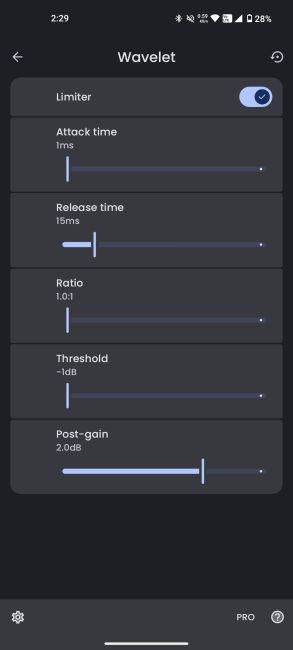
Image Credit: Beebom Gadgets
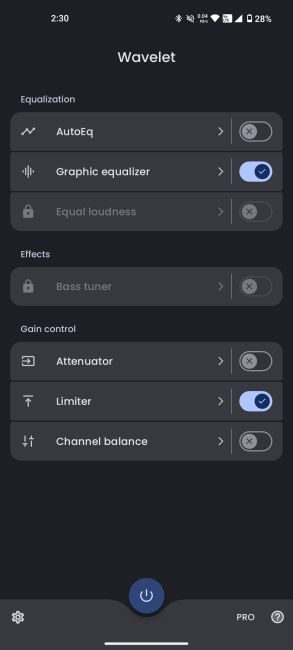
Image Credit: Beebom Gadgets
Apart from the equalisation, effects, and gain control features, I really like that I can create separate profiles for each of my audio devices and it automatically loads them based on what’s connected.
Google’s Sound Amplifier app is another gem. Designed primarily for wired headsets, its main job is to amplify the sounds around you or on your phone. It also lets you boost low and high frequencies, as well as tune the left and right ears separately. Neat. Although it’s not meant to give you crystal-clear sound, if you’re struggling to hear much in noisy areas, the app provides a good fix.
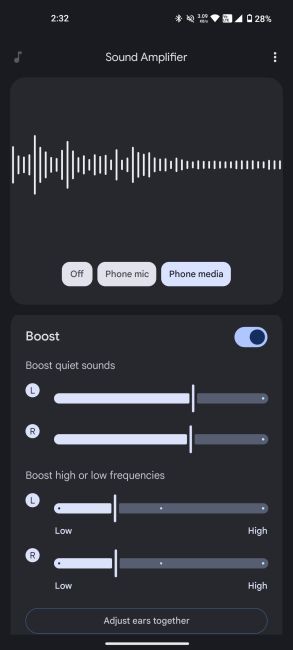
Image Credit: Beebom Gadgets
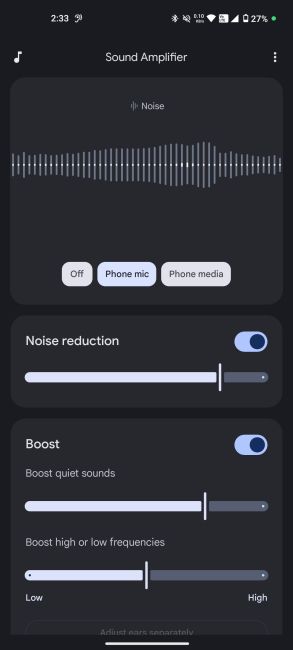
Image Credit: Beebom Gadgets
For calls, it both amplifies the mic sound and reduces noise, which made my calls much more audible, especially in loud environments.
As I mentioned earlier, Sound Amplifier is designed mainly for wired connections. For my Bluetooth devices, I didn’t hear much of a difference.
Related Articles

Sometimes, the Fix Is Already in the Settings
Most of the changes I made delivered slight enhancements to my phone’s audio quality. Though none of them in isolation was sufficient, taken together, they made a world of difference that was both noticeable and meaningful.
Sure, you can’t argue with dedicated DACs, premium headsets, or even phones with the best speakers. But those shouldn’t be your first line of attack. If you’re just starting out on your quest to get the best possible sound, you should look to unlocking your phone’s full potential and getting the best audio quality it’s capable of.


