


Answering security questions allows your Vivo phone to confirm if it’s really you who’s making important security changes. But neither those questions nor the answers you give are set in stone. In this guide, we explain how to change security questions in Vivo phones, what to do when you forget the answers, and the purpose behind these requirements.
What Is the Purpose of Security Questions in Vivo Phones?
Vivo phones require you to answer security questions when you’re setting up privacy features like App lock or when you’re creating your Vivo account.
These are basic questions, such as “What was the name of your primary school?” and “What was the name of your childhood best friend?”. You can answer them however you want, as long as you can remember them afterwards.

These questions and answers come in handy when you’re trying to unlock privacy and app encryption in Vivo phones or recovering your Vivo account but cannot remember your password. In such cases, you may have to reset your password, before which Vivo will use these questions to confirm whether it’s really you requesting the change or someone else.
Related Articles

How to Change Security Question in Vivo
Vivo asks you to answer security questions for your Vivo account as well as for privacy features like App lock, App Encryption, and Private Space. Here’s how to go about changing them:
Related Articles

For Vivo Account
In order to change the security questions of your Vivo account, you need to know the answers to the current questions. If you do, here’s how to go about the process:
- Open the Settings app. Then tap on your Vivo account at the top and select Account & security.

- Select Security questions and then type the answers to the current security questions. Once done, tap Verify.

- To set up new questions, tap on Select security question 1, then choose from the available questions, and type your answer.

- Then do the same for security question 2 and 3. Choose a question and answer it.
- Once you’ve changed and answered all three questions, tap Done.
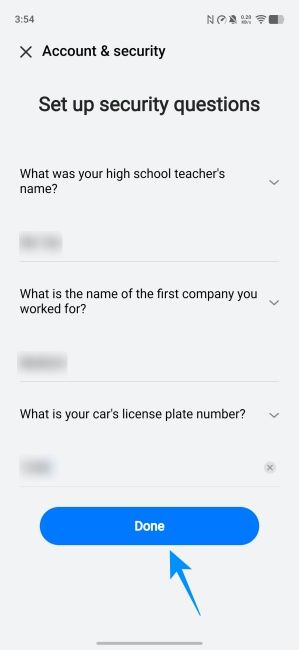
And just like that, you would have changed the security questions for your Vivo account.
Related Articles

For Privacy Password
All privacy features on Vivo phones are locked behind a privacy password or biometrics (if you have it enabled). While setting them up, Vivo phones ask for two security questions - “What was the name of your primary school?" and “What was the name of your childhood best friend?”
While you can’t change the questions themselves, you can change your answers to them at any time. However, do note that you will need to remember your privacy password in order to make those changes. Here’s how to go about it:
- Open the Settings app. Then select Security & Privacy > Privacy password.

- Enter your privacy password.

- Then select Change security questions.
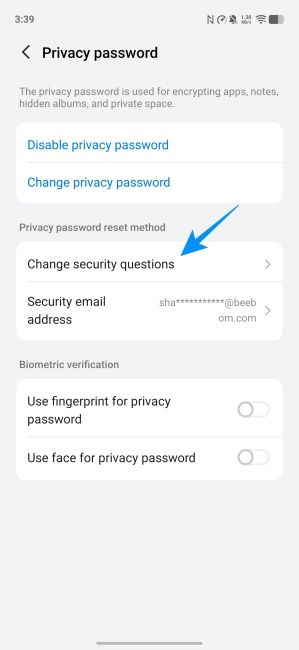
- Enter your privacy password again.
- Then enter fresh answers to the two questions. Once done, tap Done in the top right.

Related Articles

What to Do If You Forgot Security Question Answers on Vivo
The steps to resetting the security questions will be different depending on if it's for your Vivo account or the password for the privacy features.
Related Articles

For Vivo Account
If you have forgotten the answers to your Vivo account's security questions, sadly, there is no way to reset them. However, you can still sign in to your Vivo account using your phone number or security email address, but changing the questions requires the current answers.
The only way out is to delete your Vivo account and then set it up anew. Do note that this will delete all your Vivo account data. Before you do this, back up anything you have synced to vivoCloud. If that's alright, here's how to go about it:
- Open the Settings app, then tap on your Vivo account and select Account & security.
- Tap on More security settings and select Delete account.

- Tick the box at the bottom and select Apply for deletion. Once done, tap OK.

- Now, tap Register new account at the bottom, enter your email address, and verify with a code.

- Once your new Vivo account is set up, go to Account & security > Security questions. You'll now be able to set as well as change your security questions.

For Privacy Password
If you have forgotten the answers to your privacy password's security questions, you can reset the password using your security email address. However, you must have added it during setup. Once the new password is set, you can change the answers to your security questions.
- Open the Settings app. Then go to Security & privacy and select Privacy password.

- Tap on Forgot password at the bottom left.

- Select Reset via security email address at the bottom.

- Tap on Get code and then check your email. Enter the code and tap OK in the top right.

- Enter your new password and confirm.
Once the new password is set, you can go inside the Privacy password setting and select Change security questions as shown earlier.

Your Vivo account lets you replace the security questions as long as you know the current answers. And the only way to reset them without the answers is to delete and re-register your account.
That said, the privacy password works the other way around. The questions are fixed, but you can change the answers any time and reset the password through your security email if you forget them. In any case, keeping your security email up to date is the easiest way to avoid getting locked out.
Frequently Asked Questions
How can I change the security questions in Vivo phones?
To change security questions for your Vivo account, open the Settings app, select your Vivo account, then go to Account & security > Security questions, then answer current questions, and set your new questions and their answers.
How do I reset the privacy password on Vivo without security questions?
You can use your email address to unlock privacy password in Vivo without security questions. To do so, go into Settings > Security & privacy > Privacy password > forgot password > Reset via security email address.
What to do if I forgot my security questions in Vivo phones?
If you have forgotten the answers to your security questions for your Vivo account, unfortunately, the only way to reset them is to delete your Vivo account and set it up again. But if you just want to access your Vivo account, you can do so using your email address or your phone number as well.


