


Encrypting or locking apps is a surefire way of keeping your apps on your Vivo phone to yourself. As a privacy feature, it ensures that the contents of the encrypted app, like messages, media, or other data, remain available to your eyes only. In this guide, we explain how to set up app lock in Vivo phones and how to customise it so your encrypted apps remain well guarded.
What is App Lock in Vivo Phones?
The app lock feature in Vivo phones goes by the name App encryption. It’s primarily a privacy feature that encrypts your apps and puts them behind an authentication layer.
It doesn’t hide your Android apps, which is a separate privacy feature entirely, and one that can often make you forget the app even exists. Instead, the apps remain visible on your home screen and/or app drawer like any other app. But opening them requires you to enter a password, PIN or verify via biometrics, depending on which of these methods you have set up.
Related Articles

How to Lock Apps in Vivo Phones
The app encryption feature is available from within the Settings app as well as the in-built iManager app. However, the method remains the same.
Here’s how to lock apps on Vivo phones via the Settings app:
- Open the Settings app on your Vivo phone and tap on Security & privacy.
- Under Privacy settings, tap on App encryption.

- You’ll be asked to set up a 6-digit privacy password first. Enter the PIN and confirm by entering it again.

- Then answer two security questions and enter your email address. These will come in handy if you ever forget your privacy password and want to reset it.
- Inside the App encryption screen, toggle on the apps you want to lock.
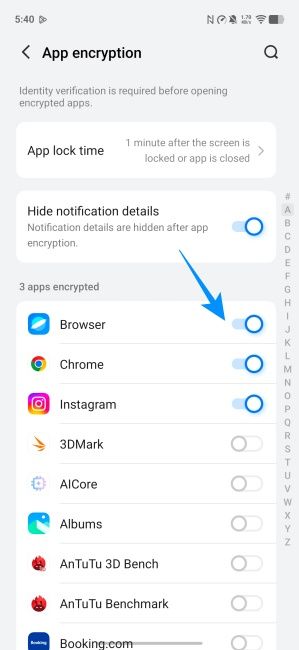
Now, whenever you try to open the app, you’ll have to enter the privacy password first.
App encryption is also available within the iManager app. To access it, open the iManager app. Then tap on Utilities at the bottom and then select App encryption.

From here, you’ll be able to toggle on/off apps that you want to lock as well as customise app encryption to your preference.
Related Articles

How to Customise App Lock in Vivo Phones
App lock in Vivo phones has certain options enabled by default that can compromise the feature or make it inconvenient. But customising them is easy.
Related Articles

Change App Lock Time
Once you open a locked app, it remains open for a brief period before it's locked again. By default, encrypted apps stay open for 1 minute after the screen is locked or the app is closed again. This is so you don’t have to enter the privacy password every time you switch between apps or lock and unlock the screen.
However, 1 minute is a long time. If someone else gets access to your phone during that time, they can easily access your locked app again.
To change this, tap on the App lock time option. Then select either After the screen is locked or After the screen is locked or app is closed.

This will ensure that as soon as you close the app and/or lock the device, the app is locked again to prevent anyone snooping around when your Vivo phone is not with you.
Related Articles

Show or Hide Notification Details for Locked Apps
Notification details from apps remain hidden by default once the app is encrypted. Although this ensures that others aren’t aware of incoming notifications from locked apps when they’re using your Vivo phone, it can be a little convenient when you are using it and don't want to stay in the dark about notification details from locked apps.
To change it, simply turn off the Hide notification details toggle.
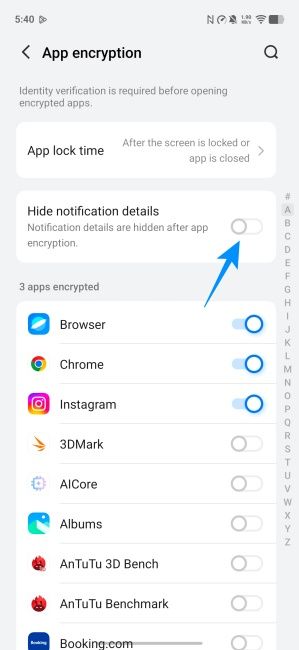
Note that this is not a recommendation. If you feel it would be better to keep the notification details hidden, let the toggle remain on.
Related Articles

Change Password Type for App Lock
The privacy password set up for locking apps on Vivo phones is a 6-digit PIN. Although there are a million combinations for such a PIN, you may want to use a different password type. Here’s how:
- Open the Settings app on your Vivo phone, go to Security & privacy > Privacy password, and hit Change privacy password.

- Enter your current password. Then tap on Other password types at the bottom.

- Now select from Pattern, 4-digit PIN or Mixed password.
For maximum security, a mixed password is ideal as long as you’re using a good alphanumeric combination with special characters. However, if you’re looking for convenience, a simple pattern or a 4-digit PIN would do the trick.

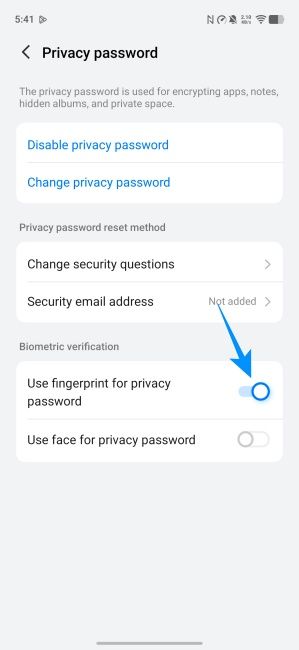
For even faster unlocking of locked apps, you can use biometric verification instead.
To set this up, go to Settings > Security & privacy > Privacy password. Then select either Use fingerprint for privacy password or Use face for privacy password.
How to Remove App Lock in Vivo Phones
Removing an app lock in Vivo is as easy as setting it up. To do so, simply access the ‘App encryption’ privacy setting as shown before. Then toggle off the apps to disable their app lock.
You can also completely disable the app lock feature as well. Here’s how:
- Open the Settings on your Vivo phone and go to Security & privacy > Privacy password.
- Here, tap on Disable privacy password.
- When asked to confirm, select Disable and enter your privacy password to confirm.

Do note that doing this will also disable other privacy features like Private space and App hiding. So if you want to remove only the app lock while retaining other privacy features, simply toggle off all apps in the App encryption screen as shown earlier.
Locking sensitive apps behind a layer of authentication is the easiest way to secure them and keep others from snooping around. The app lock on Vivo phones makes this a breeze. With only a few adjustments and the right authentication method, this privacy feature becomes truly useful so only you get access to your apps and their data, while others stay in the dark.
Frequently Asked Questions
What is app lock in Vivo phones?
App lock is a privacy feature on Vivo phones that lets you encrypt sensitive apps behind a password.
How do I lock my apps on my Vivo phone?
To lock apps on your Vivo phone, enable App encryption from Settings > Security & privacy. Set a privacy password and then turn on the toggle for apps that you want to lock.
How do I set a lock in Vivo phones?
To set a lock on your Vivo phone, open the Settings app, then go to Security & privacy > Device unlock > Screen lock and choose a screen lock pattern, PIN, or password.


