


There are various reasons why you might want to find hidden apps on an Android phone. Perhaps you might be a parent who wants to ensure your child's online safety, or suspect that a malicious app has been installed on your phone without your consent. Whatever the reason, here's how to find hidden apps on Android.
1 Use Hide Apps feature to find hidden Android apps
The most straightforward way to uncover hidden apps on Android is to check your hidden apps storage. Most phones come with an App Hiding feature, which can be used to hide apps in Android. All you need to do to discover them is to retrace the steps back to finding them in the Settings app. Here's how to do it:
- Head over to Settings > Security and privacy > Hide Apps.

- Enter the passcode that you set when hiding the apps and tap on the toggles adjacent to the respective apps to unhide them.
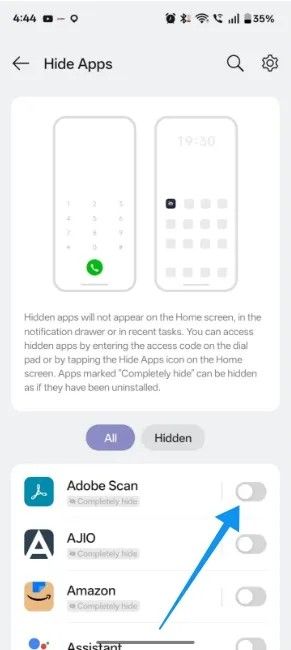
Apps hidden in the Private Space cannot be discovered because they are sandboxed in a separate, invisible user profile. In which case, there really isn't much you can do.
2 Find hidden apps using Android's app settings
This is another easy way to find hidden apps on Android. However, it's worth noting that it may not work if you've hidden apps via the Private Space feature. Besides being hidden, apps can be locked on Android. Locked apps on Android may need a PIN or Biometrics, but you can still find the hidden Android apps in Settings:
- Head over to Settings > Apps and select See all apps.

- Scroll through the list or use the search option at the top right to search for the app you're looking for.
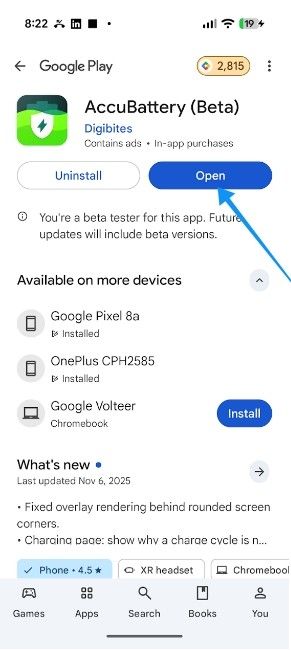
- The app should appear if it's installed; after that, you can scroll down and tap App details to open its Play Store page.

- Then tap on Open to launch the app, or uninstall to get rid of it.
3 View hidden apps from the App Drawer
Manufacturers like Google and Nothing use Private Space, a feature that can be accessed via the app launcher. While searching works if the space is unlocked, the primary way to access it is by scrolling to the very bottom of the drawer.
If Private Space is hidden, you will need to enter "Private Space" in the search bar to bring it up. Besides, some app drawers allow you to access hidden apps, especially if you're rocking an older Samsung device. In which case, here's how to find them:
- Open the app drawer and tap on the 3-dots icon at the top right.
- Then tap on Settings and select Hide apps.

- Here, you should see all the hidden apps. Some launchers show you the app if you search for them, which you can do by using the search option in the app drawer.
Popular third-party launchers like Niagara or Lawnchair have the option to hide apps baked into the app's settings. All you need to do is go to Settings > Hidden apps to find them.
4 Check for App Vaults disguised as "System apps"
Sometimes, finding hidden apps may not be as straightforward because they might be hidden in an app vault that's disguised as another system app. For starters, this app could appear in the app menu as a Calculator app or a Calendar app.

The easiest way to spot them is by checking for duplicate apps on the Android phone. Most Android phones come with their own stock Calculator, Phone or Calendar app, and if you spot a duplicate.
These apps use a passcode and open only when you enter the right passcode. Therefore, it might not be easy to get into them, or else they might continue to function as regular system apps.
And those are all the ways to find hidden apps on Android. Hidden apps are generally easy to find, but could be a pain if Private Space or a disguised app is involved. That said, it usually only takes a few seconds to find them if you follow the methods mentioned above, and they're not locked behind a password.
Related Articles


