


Our phones hold our most valuable information and are pretty much our second brains. Considering the sheer volume of sensitive information in them, keeping your private data secure is critical. Therefore, if you want to protect banking apps, social media or gallery from prying eyes, here's how to lock apps on Android.
Lock apps on Google Pixel phones
Private Space on Google Pixels can not just help hide apps, but also lock them. Although it's worth noting that it will create a new instance of the app, so you will need to log in to the app again. You also need to make sure you uninstall the app you're hiding from your main profile. On Pixels, locking apps carries the same process as hiding apps on Android.
- Head over to Settings > Security and privacy and tap on Private space.

- Go through the Setup process, log in to your Google account and tap on Set up to add a PIN or biometrics as a lock.
- Once done, tap on the + icon to launch the Play Store and install the app you want to lock.

- Launch the app and log in with your credentials.
- Once done, you can go back and tap on Lock to lock the Private space.

- Private space appears toward the end of the app drawer, but you can hide it by tapping on the cogwheel icon inside the Private space and turning on the Hide private space toggle.
- Once hidden, you can access Private space by searching for "Private space" inside the Pixel launcher's search bar.

Related Articles

Lock apps on Samsung Galaxy phones
Locking apps on Android has become much easier thanks to the majority of phone manufacturers offering a built-in app lock feature. That's also the case on Samsung phones, as you can use the Secure Folder feature to start hiding apps with ease.
While we have a dedicate guide that can help you lock apps on Samsung phones, here's a quick rundown on how to do it:
- Head over to Settings > Security and privacy > More security settings > Secure Folder.
- Follow the on-screen instructions, tap on the + icon to start adding apps, and select Add. The selected apps will now be locked.

Related Articles

Lock Apps on Xiaomi, Redmi and Poco phones
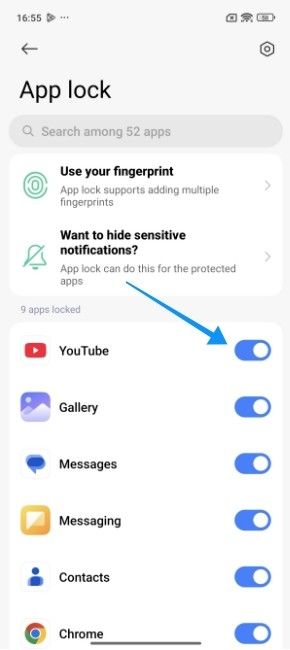
Xiaomi's HyperOS has a pretty straightforward built-in app lock on Xiaomi, Poco and Redmi smartphones. Here's how to enable it:
- Head over to the Settings > Apps and tap on App lock.

- Tap on Turn on and set a pattern, PIN or password for the app lock.
- On the next screen, choose all the apps you want to hide and tap on Use App lock.

- You can then turn on/off the toggles to add/remove apps.
Related Articles

Lock apps on OnePlus, Oppo and Realme phones
Since OnePlus, Oppo and Realme also share a similar codebase (ColorOS), the process of enabling app lock on them is pretty much the same. Here's how to do it:
- Go to Settings > Security and privacy and tap on App Lock.

- Here, turn on the App Lock toggle and set a Privacy password. This password will be different from your device passcode.
- Once done, enable the toggles for all the apps you want to lock.

- You can tap on the 3-dots icon > Set now and select Privacy password to enable other unlock methods like Fingerprint and Face unlock.

Related Articles

Lock apps on Vivo and iQOO phones
Vivo and iQOO devices running OriginOS or Funtouch OS have the app locking mechanism tucked away in the Security settings. Here's how to enable it:
- Open the Settings app and head over to Security & privacy > App hiding.

- Enter your privacy password or set a new one, and choose the apps you want to lock by turning on their respective toggles.
- You can also use the App lock time settings to define when the app should relock and enable the Hide notification details toggle to avoid getting alerts for the selected apps.

Related Articles

Lock apps on Nothing and CMF phones
Nothing OS comes with support for App Lock out of the box, and it's pretty easy to use. Here's where to find it:
- Head over to Settings > Apps and tap on App locker.

- Set a lock PIN, password or pattern if you haven't already and check all the apps you want to lock.

- Once done, tap on Lock app when and then choose Screen is locked or app exists option for maximum security.

And those are all the ways to lock apps on Android on different smartphones. Now, if your phone is running an old Android version, it may not have an App lock feature. In that case, we recommend checking out Amarok. While it's not a fully-blown app locker, it can be used to hide apps behind a passcode, which is better than nothing.


