


From downloading content to checking out new apps and customising to make them your own, there's a lot of fun to be had on our Android phones. However, phones are not infinite voids and can run out of storage and usable memory when you go overboard with downloading various apps and content. Therefore, it's important to do a full Android home screen cleanup to organise it properly. Here's how to do it.
Your Android phone's home screen is where you spend most of your time, so it's important to organise it to make things easier. Keeping this area clean and intentional is the first step to an efficient smartphone experience. Here are all the ways you can keep it tidy:
Organise Android by Removing Apps from Home Screen
The easiest way to declutter your screen is by removing the apps that are taking up too much space on the home screen. This is made extremely easy on some UIs as they allow you to select and remove multiple apps at once. There's a standard way and a mass removal process, and let's look at both:
- To remove one app, long-press its app icon and tap on Remove.

- On custom UIs like OxygenOS, long-press on an empty space on the home screen to bring up the Edit menu and select all the apps you want to remove.

- Finally, tap on Remove to remove the icons from the home screen.
- Hit Remove again and tap on Done.

Related Articles

Organise Android by Stopping Auto-Addition of App Icons
A full Android organise session will be ruined in a week if every new application you download immediately drops a new icon on your freshly cleaned screen. You need to stop the launcher from doing this automatically. To do that:
- Long-press on empty space on your home screen and tap on Home Settings.
- Here, turn off the Add app icons to home screen toggle.

Any new downloads will now stay tucked away in your app drawer until you manually move them.
Related Articles

Rearrange Apps to Neatly Organise Android Home Screen
Before getting into the advanced settings, the best way to start is by physically arranging your most-used applications. Some Android manufacturers make it incredibly easy to move multiple apps at once. A good example is Oxygen OS, which we will be using for this example.
- To move an app, long-press on the app icon on your home screen and drag it to your preferred location.
- If you want to move multiple app icons at once, long-press on a space on the home screen and select all the app icons.
- Then drag them to other pages or to another location and tap on Done.

Related Articles

Create Folders to Organise Apps on Android
While we are on the topic of apps, if you have too many apps cluttering your Android phone's screen, you might want to organise them into app folders. Creating a folder on Android is a pretty straightforward process:
- On your home screen, long-press on an app and drag it on top of another app until you see a folder preview.
- Then drop the app into this preview. Android will then automatically create a folder.
- Drop the remaining apps into this folder or create new ones. This way, you can categorise apps in different folders.

- Once your folders are created, select a folder to open it and hit Edit Name. Then give your folder a new name.
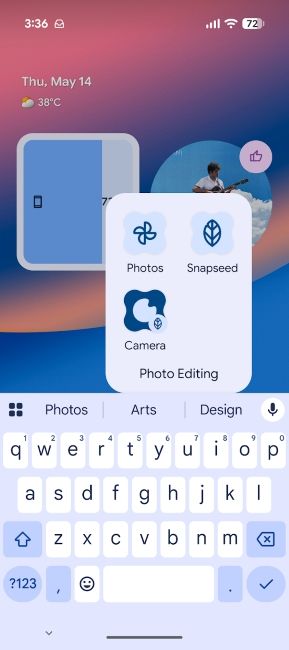
- On UIs like OxygenOS, you can long-press on the home screen, select multiple app icons and tap on Create Folder to create a new folder in a jiffy.
Related Articles

Organise Android by Hiding App Labels
Some people prefer turning off app labels on Android to give their home screens a minimalistic touch. Most custom launchers and standard Android skins allow you to manage these labels, and here's how to do it:
- Long-press on the home page, tap on Layout and turn on the Hide icon names toggle.
- Finally, tap on Apply, and the app icon names should disappear.

Related Articles

Organise Apps in Other Places on Android
While the home screen is the place you will be interacting with apps the most, places like the app drawer and Lock Screen come with their own customisation options. For starters, Android launchers let you sort apps in the app drawer, select and uninstall multiple apps at once and help you categorise them to make it easier for you to find the apps.
On the lock screen, Android lets you add lock screen shortcuts and widgets to make accessing apps and shortcuts easier. That said, Android is not just limited to the default launcher. There are a host of third-party launchers to choose from, which introduce their own set of custom rules to help you organise apps more effortlessly. The sky is the limit when organising on Android.
And those are all the ways you can organise apps on your Android smartphone. While there's no one-size-fits-all situation here, we recommend using all these methods to your benefit so that you can have the cleanest Android experience.


