


Most of us can get by with shoddy visuals on our iPhone. But there’s no substitute for when the sound distorts or when there’s just no sound on iPhone at all. As frustrating as it may seem, such iPhone issues are not without their remedy. In this guide, we will help you diagnose the sound problems on your iPhone, explain what’s causing them, and help you apply a quick fix so your iPhone can produce sounds again.
Common iPhone Sound Problems and Fixes At a Glance
To make things simple, take a look at the table below to figure out the possible causes of your iPhone’s audio troubles and which fix to apply.
| Symptom | Possible Cause | Fix |
|---|---|---|
| No notification sounds and call ringtones on iPhone | iPhone is on Silent mode | Turn off Silent Mode |
| No notification sounds and call ringtones on iPhone | iPhone is on ‘Do Not Disturb’ Focus mode | Disable 'Do Not Disturb Focus' mode |
| No sound from iPhone speaker | iPhone is connected to Bluetooth device | Disconnect Bluetooth; Remove previously paired devices |
| No sound in certain apps | App notification sounds are disabled | Enable Sounds for app within Settings > Notifications |
| No sound in one ear | Left and right channel volume is unbalanced | Balance volume for left and right channels from Settings > Accessibility > Audio & Visual |
| No sound on iPhone at all | Software bug or glitch | Update iOS; Reset All Settings; Factory Reset iPhone |
| No sound on iPhone at all | Hardware problem | Visit repair shop or Apple’s service centre |
For a more detailed analysis, check out the causes and fixes below.
Related Articles

What's Causing No Sound on iPhone?
There’s only so many things that can go wrong for there to be no sound on an iPhone. Fortunately, most of them are easily identifiable. Here’s a look at the possible reasons why your iPhone won’t make a sound, from the simplest to most problematic.
Related Articles

Your iPhone is on Silent
Perhaps the most common cause of an iPhone with no sound is that it’s simply on mute. Yes, sometimes it’s as simple as that. While most users would scoff at the mention of as basic a thing as checking their ring settings, it’s still worth taking a look.

If you see a bell icon with a line across it at the top left, or in the Control Center, that’s quite possibly the main reason why you have no sound on your iPhone.
Silent Mode doesn’t affect media playback. However, it does mute app sounds and notifications.
Related Articles

Your iPhone is on DND or Focus Mode
Do Not Disturb is another iPhone setting that silences all notifications and calls. If you have a DND schedule or have accidentally turned it on, you won’t receive any notifications or call alert sounds on your iPhone. A quick way to notice whether DND is active is to check if you can see a moon sign on the iPhone status bar.

Related Articles

iPhone is Connected to Bluetooth Accessories
When your iPhone is connected to a Bluetooth device, audio from media audio and calls are transferred to the connected device. Unless you choose to switch the output device, the calls will be audible only on the Bluetooth device.

If your Bluetooth device is turned off, it’s possible that your iPhone could have connected to someone else's Bluetooth device that is nearby.
Related Articles

App Sounds are Turned Off
Sometimes, you may be able to get sound on your iPhone, but only partially. For instance, it could be that there’s no sound on an iPhone for certain apps. This could mean that an app-specific audio setting has been turned off.
Your iPhone Audio Volume is Unbalanced
If your iPhone is playing audio but you only hear it in either the left or right ear, it’s probably not your earbuds. Often, it’s just that the audio volume on your iPhone is unbalanced. This is caused by an accessibility option that skews the sound to either the left or right ear.
Your iPhone Has a Software Glitch
A glitchy iOS can lead to all sorts of issues, including one that kills all sound on the iPhone. This is especially true if you started experiencing the no-sound issue after updating your iPhone or if you’re running a beta iOS build.
You can test this quite easily. Go into Settings > Sound & Haptics and play a ringtone. If you can hear a sound here but not outside of this settings page, it’s most likely a software issue.
Your iPhone’s Speakers Have a Hardware Problem

If you’re able to hear sound when your iPhone is connected to a Bluetooth device but not without it, it could very well be a hardware problem. Another symptom of iPhone speakers going bad is if you hear a crackling or distorted sound.
How to Fix the ‘No Sound on iPhone’ Issue
Each issue requires its own fix. Once you’ve identified the cause of the problem, go through the relevant fix to get the sound back on your iPhone.
Before you proceed, make sure you clean your iPhone speaker with a soft-bristle brush and a toothpick to make sure nothing's obstructing the audio unit. If you recently dropped your device into the water, make sure you eject water from your iPhone completely before trying out any of these steps.
Turn Off Silent Mode
To turn off Silent Mode, swipe down from the top right of your iPhone’s screen and tap on the bell icon. Make sure there’s no diagonal line crossing it and it isn’t red. Once you do that, you’ll see a small message at the top saying Silent Mode: Off.
Alternatively, open the Settings app, go to Sounds & Haptics and turn off the Silent Mode toggle.

If you have an iPhone with a dedicated Ring/silent button above the volume keys on the left, flip the switch.
Turn up the Ringtone
Simply turning off Silent Mode isn’t enough if your ringtone volume is muted. So, to make sure your iPhone rings when someone calls, open the Settings app, then go to Sounds & Haptics. Under the Ringtone section, increase the volume by moving the slider to the right.

You can also choose a custom iPhone ringtone that catches your attention more clearly than the default one.
Set Volume Separately for Alarms and Timers, Alerts and System Sounds
By default, your iPhone matches the volume of Alarms and Timers and Alerts and System Sounds to the ‘Ringtone’ volume. But if you want a louder sound for alarms, incoming texts, etc., it’s best to set them separately. Here’s how:
Open the Settings app on your iPhone, head over to Sounds & Haptics, and turn off the Match Ringtone Volume toggle under Alarms and Timers and Alerts and System Sounds. Then use the slider under each of the sections to set a custom volume level for both.

Turn off Do Not Disturb
Unless you’ve specifically whitelisted notifications from certain contacts and apps, iPhone’s DND will silence all notification alerts and incoming calls.
To disable DND, swipe down from the top right to access the Control Centre. Then tap on Focus and select Do Not Disturb to turn it off.

Turn on App Notification Sounds
If you’re getting no sound on an iPhone for only certain apps, you’ll have to ensure that those apps have the permission to notify you with sound.
- Launch the Settings app on your iPhone, go to Notifications and select an app.
- Here, turn on the Allow Notifications toggle at the top and enable Sounds.

Forget Bluetooth Devices That Aren’t Yours
If your iPhone keeps connecting to nearby Bluetooth devices that aren’t yours, you should simply remove them from the list of saved devices.
- Launch the Settings app on your iPhone and go to Bluetooth.
- Under My Devices, tap on the i icon next to a Bluetooth device and select Forget This Device.

This will ensure your iPhone connects only to Bluetooth devices that you use.
Balance Volume on Left and Right Audio Channels
If one of your earbuds is getting no sound on an iPhone, you’ll need to reset the balance of the left and right channels. Here’s how:
- Launch the Settings app on your iPhone and go to Accessibility > Audio & Visual.
- Now, place the slider under Balance right in the middle, at 0.00.

Install the Latest iOS Update
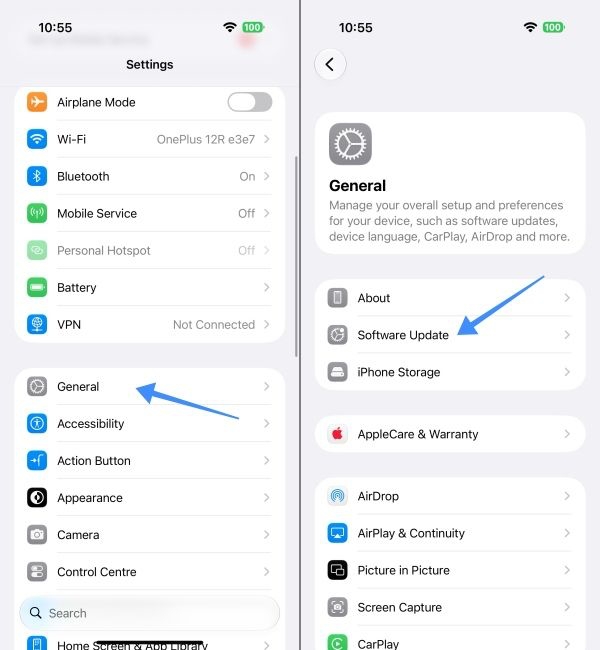
If the cause is buggy operating software, your best bet to get the sound back is to update iOS to the latest version, preferably a stable release. To update iOS on your iPhone, go to Settings > General > Software Update and update your phone.
Reset your iPhone
If the above didn’t help, you may have to reset your iPhone. Here's how to do it:
- Launch the Settings app on your iPhone, go into General > Transfer or Reset iPhone > Reset.
- Here, choose Reset All Settings.

This will change your settings back to the way they were when you first unboxed your iPhone.
If that doesn’t help, a deeper reset may be required to ensure all corrupt files and apps that were causing sound problems are purged from your iPhone. In this case, choose the Erase All Content and Settings option. You should also take a backup of your iPhone before you go down this route.
However, if your data exceeds the storage left in your iCloud plan, you may have to get additional iCloud Storage. Or, you could backup and restore your iPhone using Wondershare Dr.Fone.
Take Your iPhone to Apple’s Service Centre
If none of the above fixes have worked, then you can be sure that the problem is not with any misconfigured iPhone setting, but with the hardware itself. In such a situation, the only option left to you is to take your iPhone to a repair shop or Apple’s service centre.
While most phone problems are easily solved, fixing a mute iPhone can be particularly tricky. From software glitches and forgotten audio settings to hardware troubles, there’s a whole lot you need to inspect. But once you’ve identified the symptom and narrowed down the cause, it’s only a matter of applying the right fix.
Frequently Asked Questions
Why would my iPhone suddenly have no sound?
If your iPhone suddenly stopped producing sound, check if you’re on DND mode or if your iPhone is connected to a nearby Bluetooth device. Also check if your iPhone is on silent mode or if it’s up to date on the latest stable iOS version.
How do I unmute my iPhone?
Unmute your iPhone by tapping on the bell icon in the Control Centre. Alternatively, if your iPhone has a Silent/Ring switch above the volume keys, flip it to Ring.
How do you get sound back on an iPhone?
To get sound back on your iPhone, unmute it, raise the ringtone volume, disable DND Focus mode, and enable notification sounds for apps. If nothing works, reset your iPhone.


