


With the launch of Apple's new iPhone 18 Pro and 18 Pro Max, many people are thinking about upgrading from their current device. However, in the thrill of getting a brand-new iPhone, people often forget how tedious it is to back up and restore years of iPhone data, hoping nothing goes wrong along the way. Thankfully, Wondershare Dr.Fone offers a hassle-free alternative to setting up a new iPhone with all your data intact and safe.
Why the Usual Way to Backup and Restore iPhone Data Falls Short
If you are moving to the new iPhone 18 Pro or iPhone 18 Pro Max, you will want to take all your data from the current device with you. That's why you need to create a backup, and Apple's default backup path is iCloud. You upload everything to iCloud and move it over to your new iPhone. It works fine until you run out of storage, which doesn't take long since you only get 5 GB of free iCloud storage.
We at Beebom often switch between different iPhones. In the process, we've run into our fair share of interrupted transfers due to poor Wi-Fi connectivity, insufficient iCloud storage, or even corrupted files during wired transfers, costing us several photos, memories, and years of chat history along the way.
That's where Wondershare's Dr.Fone iOS Backup and Restore tool comes in, as it's not a single tool but an entire toolkit curated to help you with any issues you might run into when switching to your brand-new iPhone 18 Pro or even your current iPhone.
Related Articles

How Wondershare Dr.Fone Makes Upgrading an iPhone Easier
Whether it is the transfer itself, an update that didn't install correctly, or a file or chat you deleted accidentally. Wondershare Dr.Fone has a solution for every problem you may encounter when transferring or upgrading your Apple device.
It offers a simple approach, creating a full local backup of your iPhone data on a laptop or computer. While Apple covers part of the solution with iCloud backups or Finder's restore method, it doesn't match the plethora of features and ease of use that Wondershare Dr.Fone brings to the table.
Here's a closer look at Wondershare Dr.Fone tools that will be a boon for you when switching between Apple phones.
Related Articles

Dr. Fone iOS Backup and Restore
Wondershare's Dr.Fone iOS Backup and Restore tool creates a local backup on your computer, which is more reliable than typical cloud backups. Moreover, it can back up 26 different types of iOS data, including:
- Photos
- Messages
- Call history
- Voice memos
- Apple Music
- Reminders
- To-do list
- Safari history
- Safari Bookmarks
- Contacts
- Notes
- Call recordings
- WhatsApp data
- LINE app data
- Viber chats
Most of these aren't included in the standard iCloud backup. As mentioned earlier, backups also run automatically over Wi-Fi on a schedule, and each new backup only saves what's changed since the last one rather than starting over every time.
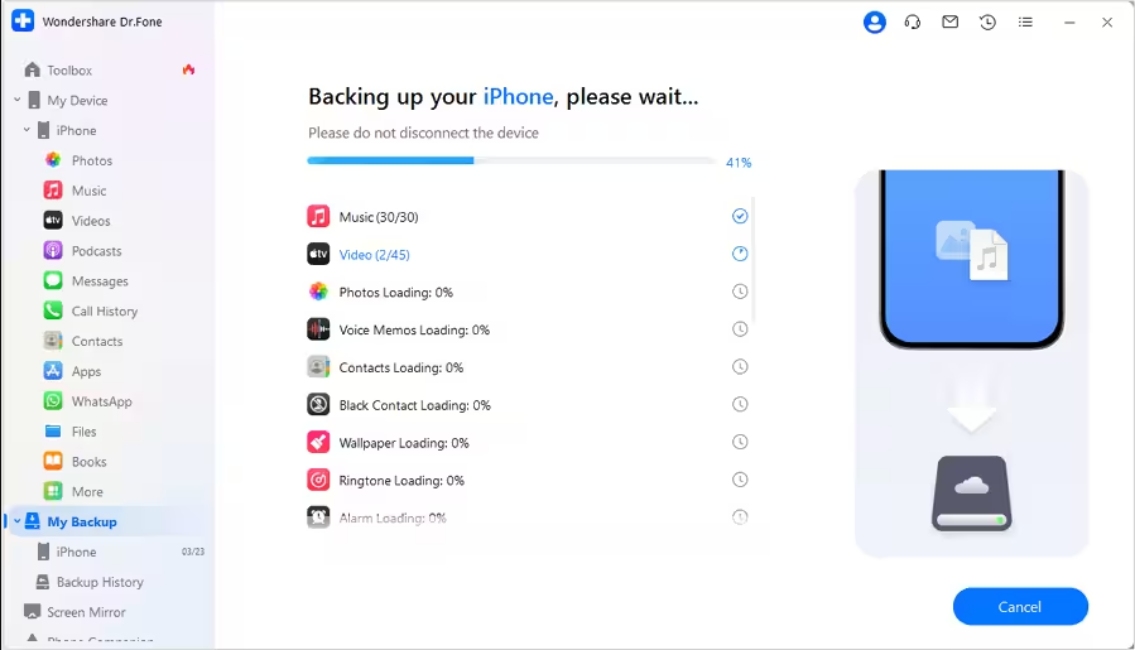
Moreover, every time you restore a local backup to your iPhone, Wondershare Dr.Fone lets you preview individual items and only restore the ones you select. We also like that Wondershare’s tool has a dedicated option to back up and export CapCut projects, which comes in handy if you don't want to lose your progress when moving to a new device.
Related Articles

Dr.Fone iOS System Repair
When an iPhone gets stuck after an update, in a boot loop, on a black screen, or with a frozen Apple logo screen, Apple recommends connecting the device to a computer and performing a system restore, which means losing everything unless you've already backed it up beforehand.
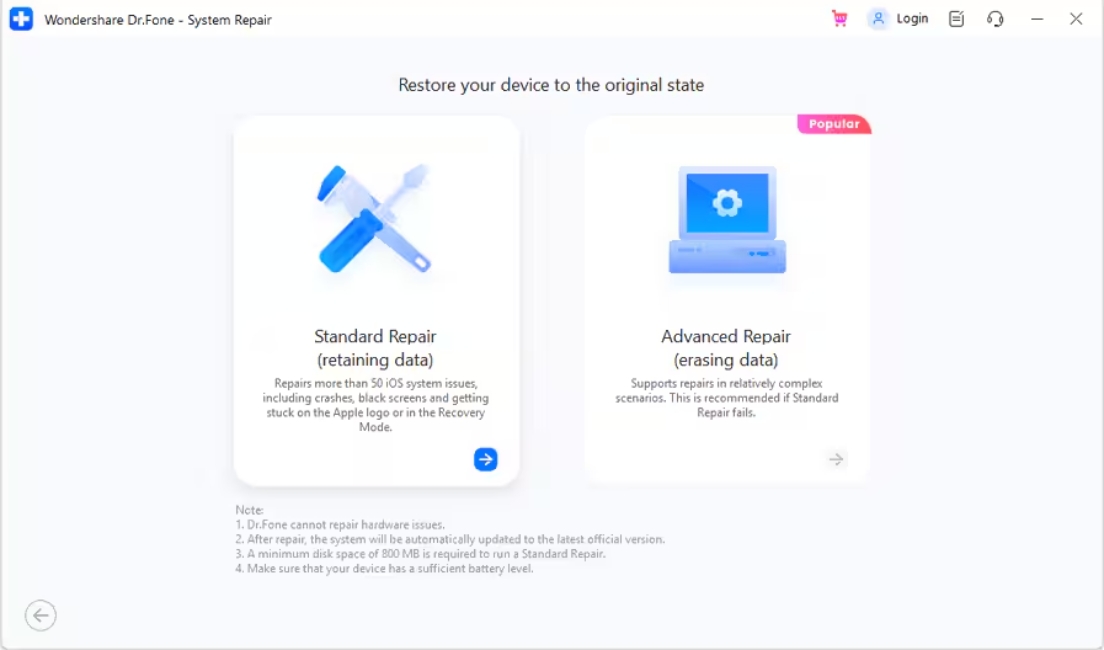
Wondershare Dr.Fone's iOS System Repair tool offers a middle ground. Its Standard Repair mode is built to fix common software issues such as Apple logo freezes, boot loops, black or white screens, failed updates, and a phone stuck in recovery mode, without erasing anything, covering more than 150 known iOS system issues in total.
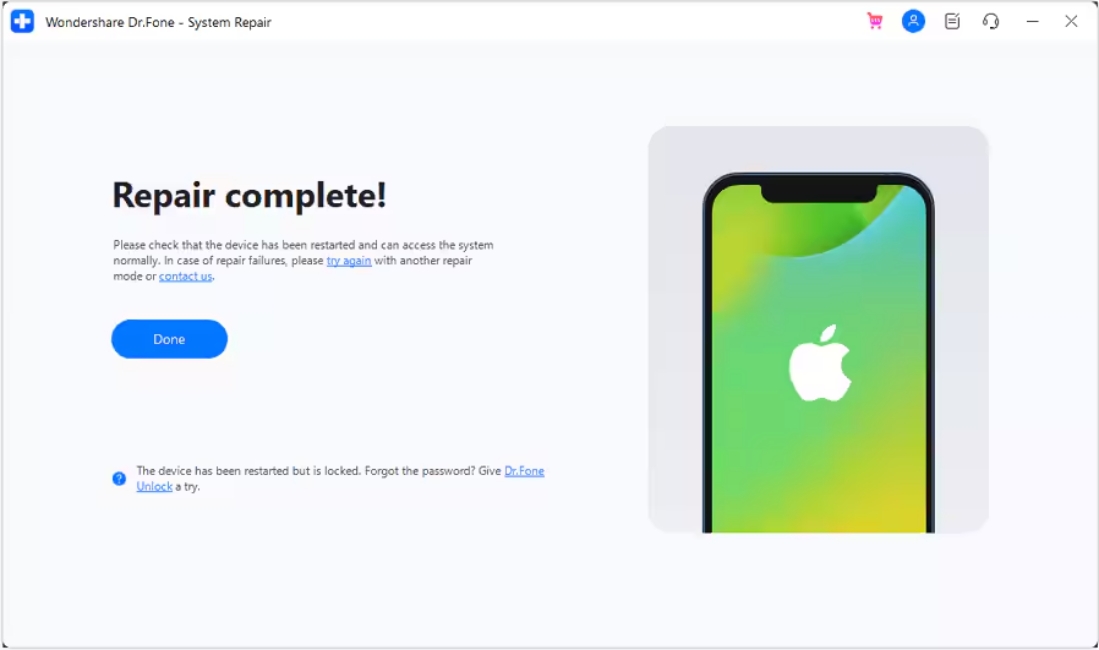
If a problem is more serious, Advanced Repair performs a deeper scan and fixes the issue, but at the cost of wiping your data. There's also an Anti-Recovery Mode for when you're selling your old iPhone and want to make sure that the storage drive is clean and that nothing on it can be recovered later.
Related Articles

Dr.Fone Data Recovery and WhatsApp Recovery
Forget data loss; even if you accidentally delete a file, a photo or video, or an entire WhatsApp conversation you did not mean to, Wondershare Dr.Fone can help you recover it quickly.
The Wondershare Dr.Fone Data Recovery tool for iOS scans both the device and your backup sources, like iCloud, iTunes, or Dr.Fone's own backups, to identify what can still be recovered. It lets you preview the results before deciding what to bring back.
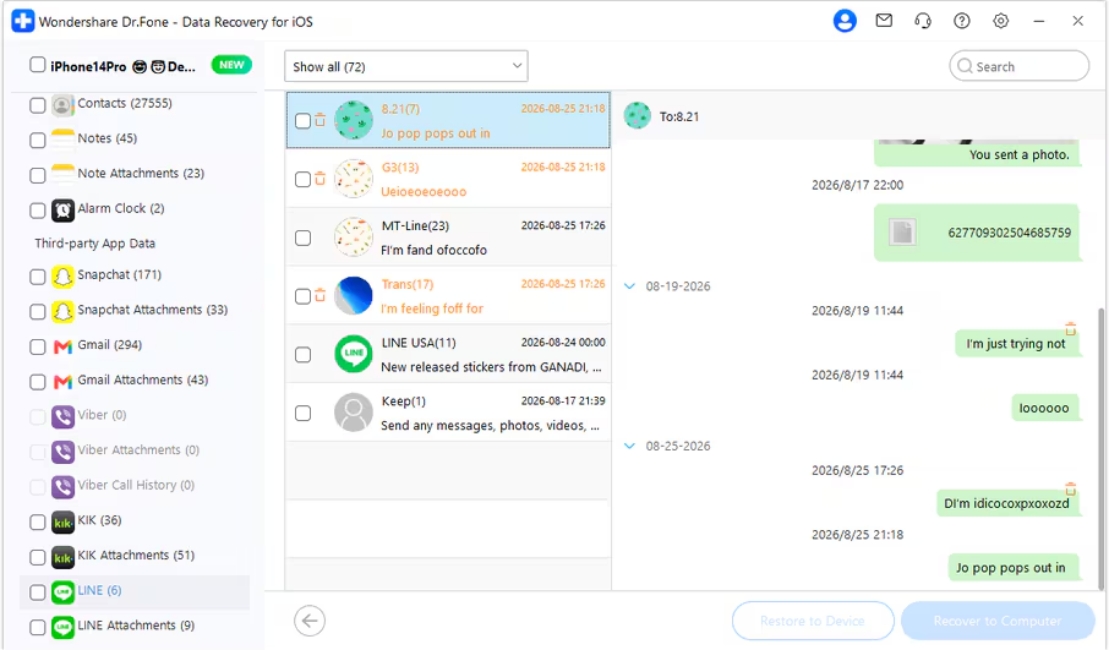
You can use it to recover messages, photos and other attachments from messaging apps like WhatsApp, including WhatsApp Business, as well as LINE, Viber, Kik, and Snapchat. In some cases, it can recover WhatsApp data even without an existing backup with the Wondershare Dr.Fone WhatsApp Recovery tool for iOS.
Related Articles

iPhone 18 Pro Buyers, Upgrading Well Means Preparing Well with Dr.Fone
Between its Backup and Restore tool, iOS System Repair, and data recovery features, Wondershare Dr.Fone tackles all three problems in one place. And it's just the tip of the iceberg, as the toolkit has several other solutions, like iCloud Activation lock bypass, in case you forgot your Apple account credentials, Phone Data Eraser and Data Transfer tools for a seamless transition.
So, if you're picking up a new iPhone 18 Pro or iPhone 18 Pro Max and wish to quickly and easily transfer all your data from one device to the next, then have the Wondershare Dr.Fone’s Backup and Restore ready before you do anything else with your old phone.


