


At this point, it's hard to imagine ourselves without our phones, as they have become the primary means of both communication and entertainment for each of us. And there are several clear disadvantages associated with its excessive usage. Therefore, if you want to steer clear of the effects, the first step is to regain control of how you use your phone, which starts with monitoring your screen time. If you own an Android phone, here's how to check screen time on it.
How to Check Screen Time on Android
To keep your phone usage in check, Google has tools in place that can help you overcome the habit. One of them is Digital Wellbeing, which was first introduced in Android 9 Pie, and it's a core feature that's still present on recent Android versions.
Digital Wellbeing not only tracks your screen time but also the number of times you unlock your device, the apps you use and the duration. The feature also helps you tone down your smartphone usage with tools like Focus, screen time reminders and App timers. Here's how to check screen time:
- Go to Settings and tap on Digital Wellbeing & parental controls.
- Here you will see a detailed breakdown of all the apps you used today, alongside your total screen time.

- Tap on the total time, and you will get a detailed breakdown of your activity for the last 25 days, including the apps you used and the time you spent on each app.
- To check your screen time for previous days, tap on the per-day bar in the weekly graph at the top.
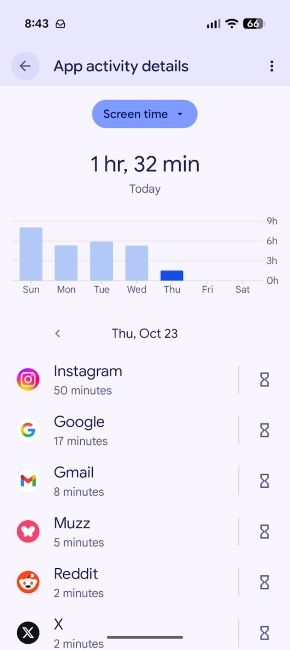
On the same page, you can tap on the drop-down menu that says Screen time and. Here, switch to Notifications received or Times opened to see those numbers instead.
The apps that you used the most will be on top of the list, and it makes it easier for you to set an App timer. Doing so will restrict you from using the app once the time limit is exhausted. This way, you are in full control of how long you use the apps.
Note that menu names and layouts can vary slightly depending on your phone brand and Android version. If you can't find the option, open Settings and search for "Digital Wellbeing" or "screen time".
Related Articles

How to Check Screen Time for Individual Apps on Android
If you only want to know how much time you spend on a specific app like Instagram or YouTube, Digital Wellbeing has a dedicated page for each app. Here is how to open it.
- Open Settings and go to Digital Wellbeing.
- Next, tap on the usage chart to open the dashboard.

- Now, scroll through the list and tap on the app you want to check. If you don't see it, tap on Show all apps.
- You will now see a daily graph for that app along with its screen time, the notifications it sent and the number of times you opened it.

From this page, you can also set an app timer for that app or jump to its notification settings. If you browse the web a lot, tap on Chrome in this list and then Show sites. This shows you how much time you spend on each website and you can even set a timer to limit a specific website.
Related Articles

How to Check Screen Time on Samsung, Pixel and Xiaomi Phones
Since Digital Wellbeing is part of Android, the steps above work on most phones. That said, phone makers can place the menu in different spots. Here is where you will find screen time on popular Android phones:
| Brand | Where to find screen time |
|---|---|
| Google Pixel | Settings > Digital Wellbeing (Digital Wellbeing & parental controls on older Android versions) |
| Samsung | Settings > Digital Wellbeing and parental controls |
| Xiaomi, Redmi and Poco | Settings > Digital Wellbeing & parental controls > Dashboard |
| Other Android phones | Search for "Digital Wellbeing" or "screen time" in the Settings app |
On Samsung phones, Digital Wellbeing is deeply integrated into One UI, so it looks different from Google's version. Tap on the screen time chart to get app-specific details and you can switch to a weekly view to compare your usage across days. Samsung also lets you set a daily screen time goal and tracks your screen time while driving.
On Xiaomi, Redmi and Poco phones running HyperOS, you get the standard Digital Wellbeing dashboard. To limit an app from here, tap on the hourglass icon next to it.
If you own a Pixel 11 series phone, you also get Pause Point, which is a new Android 17 feature that adds a short pause before you open apps you have marked as distracting.
Related Articles

How to Check Screen Time from the Android Home Screen
An easier way to check screen time on Android is by using Digital Wellbeing widgets or its home screen icon, which isn't enabled by default. The widget gives you an at-a-glance view of your usage habits on the home screen, while the app icon directly opens Digital Wellbeing.
Here's how to add both the Digital Wellbeing widget and shortcut to your home screen:
- Long-press on your Android phone's home screen and tap on Widgets.
- Swipe down and tap on Digital Wellbeing to expand. Here, tap on Add to add this widget on your home screen.

By default, the widget takes a 2x2 size, but you can expand it to show more usage information. You can do so by long-pressing on the widget and dragging the edge brackets as you prefer.

- Now, to add the Digital Wellbeing app shortcut, head over to Settings > Digital Wellbeing and enable the Show icon in the app list toggle.

- Drag the icon in the apps list to the home screen to add it as a home screen shortcut.

This eliminates the need to go to dig through the Settings to find Digital Wellbeing each time you want to check your screen time. Note that widget options vary by phone. On Samsung phones, you get separate Screen time and App timers widgets.
Related Articles

What Does Android Screen Time Show?

Your Android screen time indicates the amount of time you spend on your phone. It shows you a detailed breakdown of usage for each app and how often you unlock your device. Besides, it also lets you curb your smartphone addiction with features like Bedtime mode, Focus mode and app timers. Here's what each feature does:
| Metric or feature | What it does |
|---|---|
| Screen time | Shows how long each app has been open on your screen along with your total time for the day |
| Times opened | Shows how many times you unlocked your phone and how often you opened each app |
| Notifications received | Shows how many notifications you received and which apps sent them |
| App timers | Lets you set a daily time limit for an app |
| Focus mode | Pauses the apps you find distracting along with their notifications |
| Bedtime mode | Turns on Do Not Disturb and display options like greyscale and a dimmed wallpaper at a scheduled time or while your phone charges |
| Screen time reminders | Periodically shows a pop-up pill with the amount of time you have spent in an app |
| Work apps schedule | Lets you pause work apps outside your working hours |
| Pause Point | Adds a 10-second pause before you open an app you have flagged as distracting |
Keep in mind that not every feature is available on every Android phone, and some brands rename or move them around.
Related Articles

How to Set an App Timer on Android
Once you know which apps take up most of your time, you can set an app timer to limit them. Here is how it works:
- Open Settings and move to Digital Wellbeing.
- Here, tap on App timers. On some phones, this option is called App limits or you can find it by tapping on the usage chart.

- Tap on the hourglass icon next to the app you want to limit.
- Finally, choose how much time you want to spend on that app each day and tap on OK.

When you run out of time, the app closes and its icon turns grey for the rest of the day. App timers reset at midnight so the app works normally the next day.
And those are all the ways you can check your screen time on Android phones. Besides viewing your screen time, Digital Wellbeing features also let you take control of your screen time and minimise it to maximise your productivity.
Frequently Asked Questions
Can I check my screen time for the previous week?
Yes. Just open Digital Wellbeing and tap on the usage chart. The graph at the top shows your screen time for the past week and you can tap on any bar to check your screen time of a specific day.
Does Android have a built-in screen time tracker?
Yes. Digital Wellbeing is Android's built-in screen time tracker and it has been part of Android since Android 9 Pie. You will mostly find it in Settings, though some brands use a slightly different name.
Can I check how much time I spend on websites?
Yes, if you use Chrome, you can check how much time you spend on websites. Open Digital Wellbeing, tap on the usage chart, select Chrome and tap on Show sites.
Can I check my child's screen time on Android?
To monitor your child's phone from your own device, use Google Family Link. On phones running Android 17, you can also use the built-in parental controls in Settings to set a daily screen time limit and app limits, protected by a PIN.


