





iOS 27 finally brings the glow-up to Siri it always needed, with new Siri AI features, context awareness, and more. You can say it's not your grandpa's Siri anymore. But the changes I was excited about are the Pace and Expressivity sliders to control how quickly Siri talks and how much emotion it puts into it.
But in typical Apple fashion, this feature is only available on the iPhone Air and iPhone 17 Pro models. Apple is basically gatekeeping a simple feature on their newer devices, which doesn't sit right with me. Fortunately, I found a backdoor for it hidden within the Accessibility settings.
What Apple's New Siri AI Sliders Actually Do
Before guiding you towards the workaround, let me shed some light on what this Siri AI feature does that Apple needs to keep it exclusive to its latest iPhones.
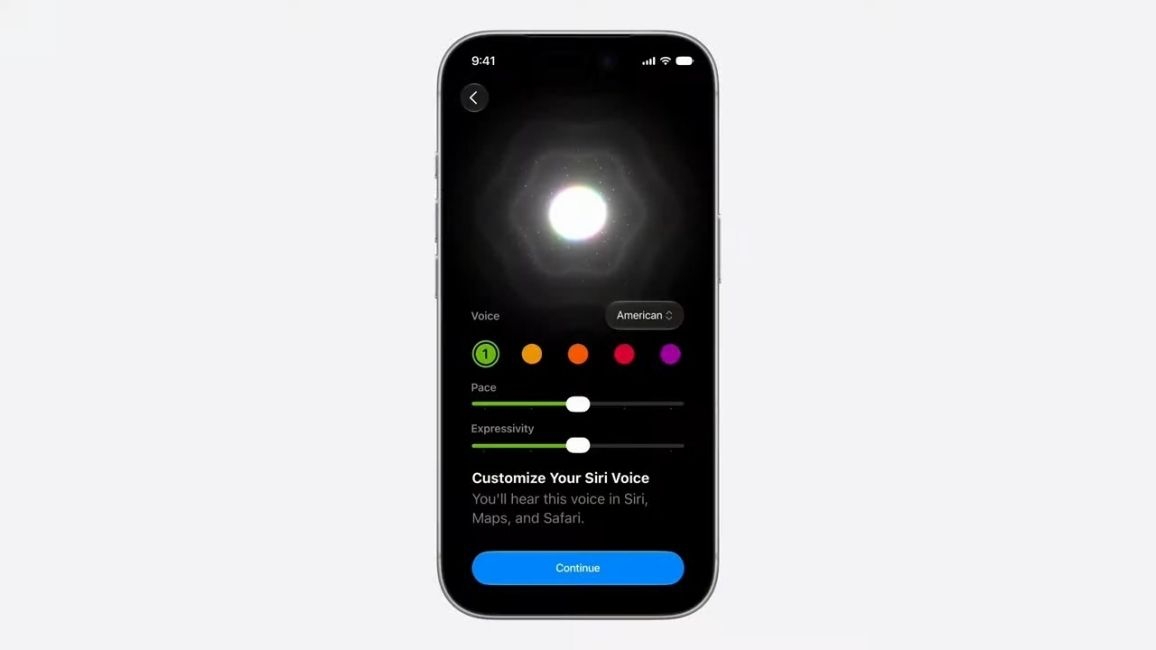
The iOS 27 update not only makes Siri more intelligent but also customisable. Users can pick between seven different voice options and customise Siri's voice by adjusting the Pace and Expressivity sliders.
Pace lets you change how fast Siri AI speaks, while Expressivity lets you choose how chatty you want it to be. So, if Expressivity is set to minimum, it will respond like a typical robotic assistant, and dialling it to maximum will turn Siri into a chatty Kathy. Similarly, the higher the Pace, the faster Siri will respond.
The reason it is exclusive to the iPhone Air and iPhone 17 Pro models is that this feature runs on-device and needs 12 GB of RAM and the Apple A19 Pro chipset – a configuration limited to these phones only.
Related Articles

A Siri Speed Setting That Works on Older iPhones
The voice selection I can live without. The default has been fine by me for years, and I have never once thought about changing it. And Expressivity is a genuine hardware limitation that I can't do anything about. But Pace is just speed. And there is a workaround for it available for almost all Apple phones.
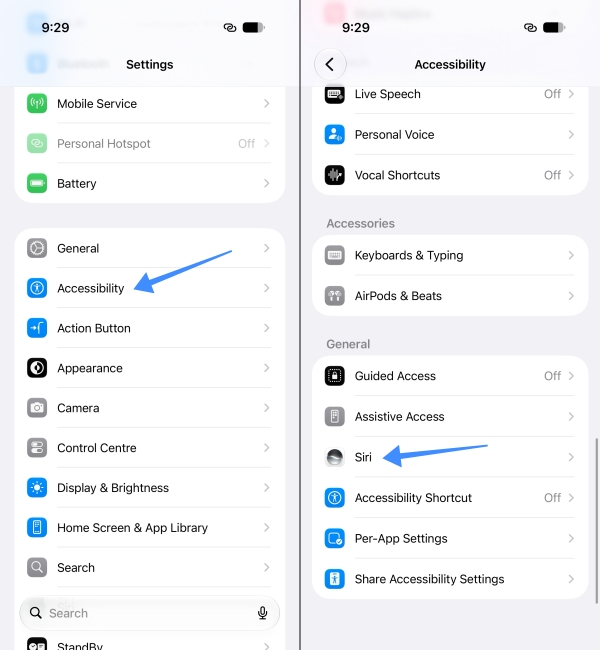
You can control how quickly Siri AI talks with the Speaking Rate option under the Siri Accessibility settings. It works similarly to the Pace slider in iOS 27, and here's how you can find it on your iPhone.
- Open the Settings app on your iPhone and go to Accessibility > Siri.
- Here, drag the slider under Speaking Rate towards the right for faster and left for slower. Test by asking something, like "when is sunset?", and adjust accordingly.
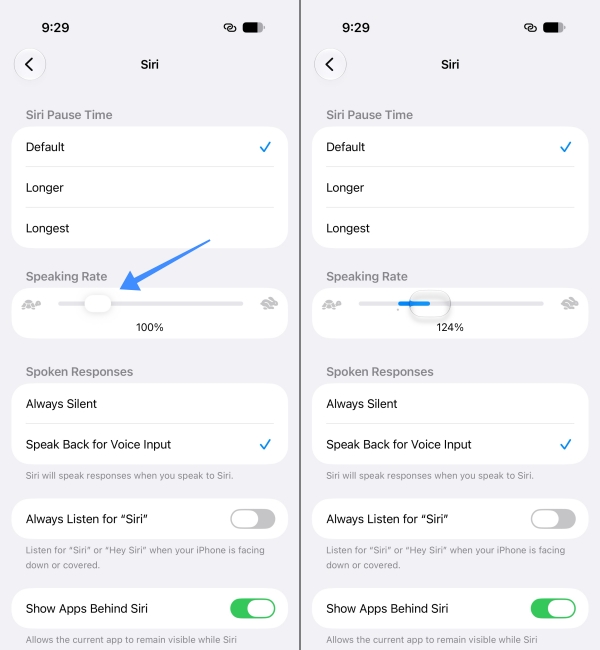
The range runs from 80–200%, with 100% as the default, so there is far more headroom than you probably need. The setting applies to a paired Apple Watch too. The Speaking Rate slider is available on all iPhones running iOS 17 or newer versions.
Related Articles

What I Actually Got Out of It
Since my iPhone does support the new Siri AI features, I used this workaround to make it talk faster. And for the first time, I don't need to wait patiently as Siri finishes its sentences. When asking for a timer, striking a conversion, or checking tomorrow's weather, Siri's replies land quicker, and I get on with my day.
What I did not get is the expressiveness. Siri still reads with the same flat cadence it always had, just at a brisker speed. The new voices reportedly sound warmer and more natural in a way a speed adjustment cannot fake, and if that matters to you, an Accessibility toggle is not going to close that gap.
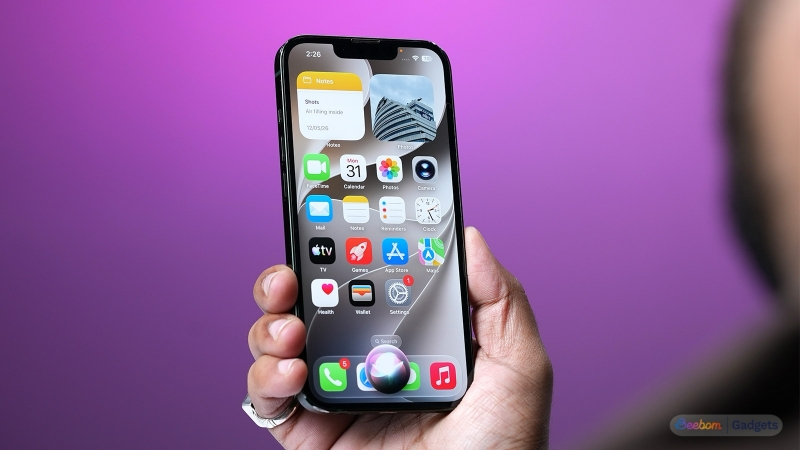
While you are in there, there's also a Siri Pause Time option, which controls how long Siri waits before deciding you have finished talking. This is genuinely great because I hate it when Siri interrupts me midway through speaking like an impatient kid.
As I said earlier, Apple mentions nothing about this menu. Phones that support Apple Intelligence features can use it, and phones that don't can't. Half a feature for free is still a reasonable trade. So try it out yourself and let me know what you think about it.
Related Articles


