


Pixel-exclusive features are one of the main reasons behind users considering getting a Pixel, and lately, these exclusive features have all been about leveraging on-device AI. After Notification Summaries, Google rolled out Notification Organiser on Pixels and, as the name suggests, it identifies and bundles lower-quality notifications to keep your notification shade clutter-free. Here's how to use Notification Organiser on Google Pixel phones.
What is Notification Organiser on Google Pixel phones?
As the name suggests, Notification Organiser on the Google Pixel smartphone helps clean the notifications on your Pixel by organising and placing them into different categories. It does so by leveraging the on-device Gemini Nano model after identifying the type of notification and grabbing information from the Notification channel signals.

Once enabled, the AI identifies the nature of the notification (Example: News, Promotions or Social updates) and inserts it into the relevant category. These Organised bundles are set to silent by default to reduce distractions, while high-priority alerts like direct conversations are left untouched so you never miss them.
Related Articles

How to enable Notification Organiser on Pixel phones
The Notification Organiser feature comes pre-enabled on recent Google Pixel phones, like the Pixel 9 and Pixel 10. Unfortunately, it's not available on the Pixel 9a. The feature can be found in the Notifications settings. If you don't spot it, you may first need to update your Google Pixel. In case you had manually turned it off, here's how to turn it back on again:
- Head over to Settings > Notifications and tap on Notification organiser.

- Turn on the Use notification organiser toggle to enable it.
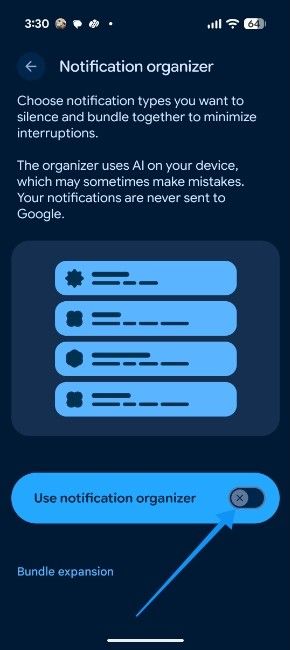
- If the feature just rolled out, you may also see a prompt card in your notification shade asking if you want to set this up. Tap on Learn more to set it up.

However, since the feature silences notifications, you might want to turn it off or exclude apps that you want to appear individually. In which case, you can tap on Manage apps and disable the toggles for apps that you want to exclude.

Related Articles

Customising Notification Categories
Once enabled, you can choose exactly which types of notifications you want the AI to bundle and silence. You will see checkboxes for the following categories:
- Promotions: Sales, new features and marketing offers.
- News: Top stories, editorials and headlines.
- Social: Likes, posts and other social media updates
- Suggested: Newsletters and recommended media.

All you need to do is simply check the boxes or the categories you want to be organised, and the on-device AI will start categorising while silencing the notifications as they appear. This is quite similar to notification channels, which can be used to block Ads on Android phones.
Related Articles

Managing behaviour and exclusions
Now that you've selected what kind of notifications you want to bundle, we move on to managing their behaviour, like how they behave and which apps are affected. Starting with Bundle Expansion, it lets you choose how the bundled notifications appear in your shade:
- Automatic: Let the system AI device when to expand the category bundle.
- Always expand: Bundles will always be open by default.
- Never expand: Bundles will stay collapsed to save the most space.
Similarly, you can turn on the Apply to work profile apps toggle to start organising work notifications.
Once set up, lower-priority notifications will no longer buzz your phone or clog up your main feed. Instead, they will appear silently in a bundled section, for example, in a Promotions bundle, at the bottom of your notification shade.
And that's how you can set up and customise Notification organiser to declutter your notification shade for extra peace of mind. It's easily one of the best Android 16 features, extending the already excellent Notification channels features.
Related Articles


