


Getting a new SIM card and a new number is all fun and games until someone asks for your number, and your mind goes blank. Perhaps you are trying to set up a secondary SIM you haven't used in months and don't remember the number. Or maybe you want to know the ICCID number of your SIM card to help add an eSIM or report network issues to your carrier. If you're in team green, here's how to check the SIM number on Android with ease.
1 Find SIM Number (ICCID) using Android Settings
ICCID, for those unaware, is a unique number just like the IMEI number on a smartphone. It's a 20-digit number that could come in handy when switching carriers, transferring eSIMs or fixing connectivity issues. Checking your SIM's ICCID number is just as easy as checking the IMEI number on Samsung or any Android smartphone. Here's how to do it:
- Head over to Settings > About phone and tap on SIM status.

- A pop-up should appear. Here, swipe down to see the ICCID number and note it down.
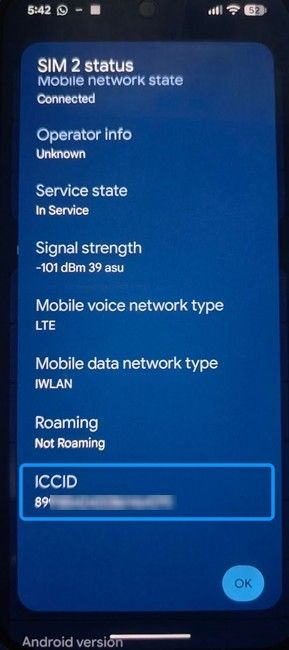
- Alternatively, you can go to the phone app and enter the code *#06# to launch a pop-up.
- Swipe down, and you should see the ICCID number. If your phone has two SIMs, you will see two ICCID numbers – ICCID 1 and ICCID 2.

If you don't see the ICCID number, grab a SIM ejector tool and pop the SIM card out of the device. Squint and look closely, and you should see the ICCID number printed on your SIM card. Note it down.

2 Check the SIM mobile number on Android
Your phone usually stores your number directly in the system settings. Here's where to find and check it:
- Head over to your phone's Settings app and tap on About Phone.
- Look for a section labelled Status or Basic Info. Your number will be listed below the text Phone number or My phone number.

- If you're using a Samsung phone, go to Settings > Connections > SIM Manager to see your number.
- Alternatively, you can also go to Network & Internet > SIMs and check your phone number on the SIM card toggle.

3 Locate the SIM Number using USSD Codes
Indian carriers have specific short codes you can dial to check your SIM number. All you need to do is open your keypad, type the code and hit the call button, and your number will show up in a pop-up on the screen, instantly. Here are all the USSD codes for networks.
| Carrier | Code |
|---|---|
| Jio | *1# |
| Airtel | *282# |
| Vi | *199# |
| BSNL | *222# |
And those are all the ways to find your SIM card's unique ICCID number and your own number. It all boils down to knowing where to look. For most users, the USSD codes are the quickest solution, but checking WhatsApp or your Settings menu are reliable way too.
Related Articles


