





Apple Intelligence brings advanced AI-powered features to the iOS experience on modern iPhones. These range from the new Siri app, notification summaries, Image Playground, Genmoji and a lot more, making your daily activities simpler. In this guide, we will go over all Apple Intelligence features, how to enable and use them on your iPhone.
What is Apple Intelligence?
Apple Intelligence is a suite of system-wide AI features built into iPhones, iPads, and Macs. It can help to write, summarise, translate, transcribe, generate images, and generally get things done faster. But unlike many AI tools, it processes most tasks directly on your iPhone, keeping your data private.

This means your data isn’t shared with the cloud and remains secure. However, for more demanding AI tasks, Apple uses Private Cloud Compute to handle them securely without exposing personal data.
Apple Intelligence debuted with iOS 18 on the iPhone 15 Pro, and all newer models are part of the Apple Intelligence eligible devices list. It now comes pre-installed on newer models, including the iPhone 17 and iPhone 17 Pro.
Related Articles

All Apple Intelligence Features Explained
Based on everything we have discussed above, let's dive into all the Apple Intelligence features available on your iPhone.
Related Articles

Siri AI and the Siri App
iOS 27 introduces Siri AI, powered by Google Gemini and Apple's new foundation model. It is smarter, contextually aware, conversational, and works from anywhere on your iPhone. You can bring it up by swiping down on the Dynamic Island and asking it about anything. Whether it is any text or an image on the page, it will be able to provide more details about it while keeping your data secure with Apple Cloud Compute.

Siri also received its dedicated app where users can have back-and-forth conversations with the AI, similar to other AI chat apps like Claude, Gemini or ChatGPT. It even lets you interact with the AI assistant in text or voice and add attachments for more context or better results.

The layout features liquid glass design language all over, with older conversations appearing as floating bubbles. Users can also plug multiple AI models to interact with Siri. It can also provide personalised results, pulling data from your notes, text messages, emails, contacts, calendar appointments and reminders
Related Articles

Siri Mode in the Camera App
The iOS 27 Camera app also gets a new Siri Mode, which replaces Visual Intelligence. It sits along with the other modes like Photo, Video, Slow-Mo, and Time Lapse. Using the Siri Mode will provide context about any object you point the camera at, including information available on the web.

Siri also lets you ask follow-up questions about the object. It can even show nutritional information like calories, protein, fibre, and sugar using the Health app and add it as required.
Related Articles

Describe Shortcuts in Natural Language
Earlier, users had to manually pick and decide how their shortcut would work, which required some basic understanding of the feature. With iOS 27, you can simply give a prompt in natural language for what kind of shortcut you want, and the AI will create the shortcut for you.

This takes away the learning curve required to use Shortcuts earlier, making it easier to create custom automations.
Related Articles

Notification Summaries
Notification summaries show a bite-sized AI preview of app notifications. It provides quick context without needing to go through lengthy messages. Summarised notifications appear when you pull down the Notification Center. You can tap on the banner to reveal all alerts.

It works across all apps, including News, Messages, WhatsApp and even emails. However, it can make mistakes, as it might not understand the context and could show a misleading summary instead. This led to quite a backlash, with Apple having to remove the feature and bring it back again later.
Writing Tools
Apple's Writing Tools are handy AI additions that let you rewrite text in different tones (Professional, Casual, Concise), proofread grammar and spelling, and summarise long paragraphs.
Apple Intelligence also introduces a new Grammar checker that will suggest grammatical changes, similar to Spell Check, while writing mail or messages. The good thing is you can choose to accept or reject these suggestions. Grammar Checker is limited to iOS 27 eligible devices only.

Writing Tools are built directly into the keyboard and can be accessed from the contextual menu that appears after selecting any text. It works across apps like Notes, Mail, Messages, and Safari. However, third-party app support is still limited in 2026. You can even use Writing Tools by creating a shortcut with Apple Intelligence to automatically reply to emails.
Call and Voice Memo Transcriptions and Summaries
Apple Intelligence has also brought the ability to record calls on all Apple iPhones to create transcriptions and summaries of conversations. Users can start recording an ongoing call, and it will alert both participants. Once the call ends, your iPhone will transcribe the recording and even generate a summary, so you don't need to replay anything.

This also works in the Voice Memos app, where you can record a voice note, and it will generate a transcription and a summary for the same.
Clean Up Tool and Smart Search in Photos App
Apple Intelligence also upgrades the Photos app by adding the Clean Up tool and Smart Search features. The 'Clean Up' tool helps to erase unwanted objects and people from the image, similar to the 'Magic Eraser' feature on Google Photos. You can find this tool by tapping on the Edit option.

Meanwhile, Smart Search allows you to search through your Photos gallery with natural language. You can just type "Flowers", and the Photos app will show you all matching results that have flowers in them. This makes finding specific photos easier on an iPhone.

Edit Photos with Extend and Reframe AI Features
With iOS 27, Apple introduced two new AI-powered editing features in the Photos app: Extend and Reframe. As the name implies, Extend allows you to generate additional content beyond the original image. This allows you to add a wider view to the image than what was originally taken.

On the other hand, Reframe allows you to shift the perspective of the shot after it has been taken for an immersive spatial view.
Memory Movie in the Photos App
Memory Movie is another Apple Intelligence feature found in the Photos app. It is located under the "Memories" section, where you can tap on Create and describe the memory you want to make. You can write, "Family Beach Vacation Photos", and it will find the related photos and videos and create a custom slideshow that you can share on your socials.

Reduced Interruptions in Focus Mode
Reduced Interruptions is a lesser-known feature that can be found within the Focus section inside the Settings app. When enabled, it automatically filters and silences notifications that it deems useless while sending alerts for priority ones only.

The setting uses artificial intelligence to decide which alerts from people and apps are more important. It can be quite useful when you don't want to filter out specific people in Focus Mode. You can find the same option across other Focus Modes like Work, Driving or Do Not Disturb under the Intelligent Breakthrough and Silencing section.
Priority Notifications and Emails
Using the same principle, Apple Intelligence can also identify priority notifications and emails. It can sort urgent messages that need your immediate attention, like a loved one requesting a call back or a bill that is due tomorrow. It will analyse such messages and mail on the device and show them at the top of the lockscreen or the Mail app in the "Priority" box.

Smart Reply in the Messages and Mail Apps
Smart Reply suggests a response on your keyboard when you receive a message or an email. However, it is important to know that Smart Reply creates a response based on the content of the mail or message and might not be relevant for all conversations. It is only available in Messages and Apple Mail apps.

Image Playground App
Unlike most other features in this guide, Image Playground is a standalone app where users can generate AI images in different styles. You can describe anything in natural language, like a "bird riding a motorcycle", and within seconds, the app will generate an image resembling your prompt. Users can swipe through to see the image in different art styles or customise it with the provided themes.

iOS 27 eligible devices will see a new option called "Describe a change". This will let you edit certain parts of the AI image without affecting the overall look of it. Image Playground also uses an improved model in the iOS 27 update, allowing the generation of more true-to-life images.

Users can also use images of their friends and family from the photo library and edit them in the app. Moreover, you can also generate custom wallpapers from Image Playground for your iPhone.
Image Wand in the Notes App
Image Wand is another neat Apple Intelligence feature that turns all your little doodles and rough sketches into high-quality images with the power of AI. If you have a rough, hand-drawn image in the Notes app of a dog or a house, then Image Wand can transform it into a detailed illustration or artwork filled with colours and details.
Genmoji AI Emojis
Genmoji lets you spice up your iMessage conversations by letting you create custom emojis with simple text prompts. You can type something like "sleepy panda with coffee" and get a unique emoji. To use it, open the Emoji keyboard in Messages, tap Genmoji, and enter your prompt. It can also suggest emoji ideas based on the context of your conversation.

Visual Intelligence
Visual Intelligence is the Google Lens equivalent for iPhones. This Apple Intelligence feature lets you use your camera to identify things in real time. Just point your iPhone at an object, text, or place, and it instantly tells you what you’re looking at, translates text, or pulls up relevant information.
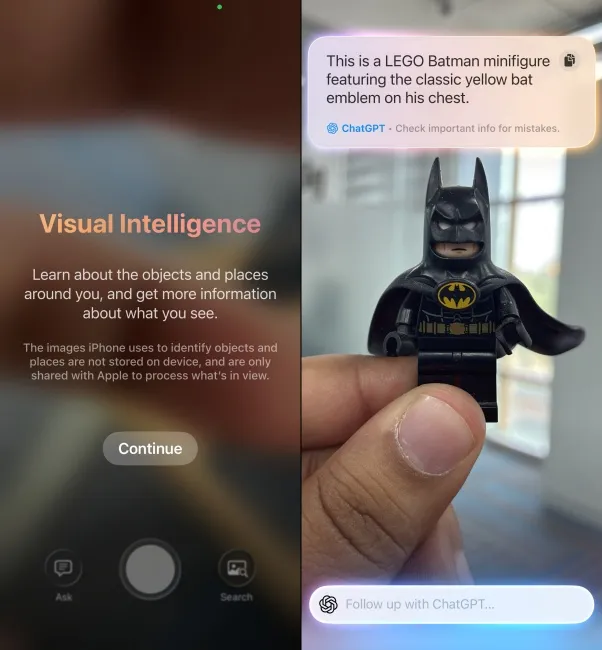
It can be brought up by long-pressing the Camera Control button available on iPhone 16 and newer models, except for the iPhone 16e and iPhone 17e. Users can also assign Visual Intelligence to the Action button, add it as a lock screen shortcut or bring it up from the Control Centre. It can also use ChatGPT to answer complex queries if you have enabled the ChatGPT extension in Apple Intelligence.
How to enable Apple Intelligence on your iPhone
Unless you have turned off Apple Intelligence manually, enabling it is a pretty straightforward process. If you have bought a new iPhone recently and are wondering where to enable it from, then simply follow the steps below.
- Open the Settings app and select Apple Intelligence & Siri.
- Here, turn on the Apple Intelligence toggle at the top.

That’s it! Once enabled, you should see Apple Intelligence features appear across your iOS apps.
Upcoming Apple Intelligence Features
Development for Apple Intelligence has been slower than for Google and Samsung phones, but there is chatter that the company is working on a range of improvements to refine its AI. Based on rumours and reports, here are some upcoming Apple Intelligence features expected in the coming months.
- Support for Multimodality: With the arrival of Gemini on iPhones, we can expect Apple Intelligence to support multimodality. This means more ways to interact with the AI on your iPhone with less friction. It's a subtle change, but it will offer far more control and flexibility for users.
- Scan Contact Details: Visual Intelligence will also see two new features that will let users scan nutritional data on food packaging to provide more details based on that. It could also let users scan contact details from business cards and directly add them to the Contacts app.
- Digital Passes in Apple Wallet: Apple Wallet will also get an Apple Intelligence upgrade, allowing users to scan tickets and passes and create a digital version of them similar to Google Wallet.
- Expanded Language Support: Currently, Apple Intelligence is mostly available for English language users only. But the company will be expanding its support for more languages so more people can take advantage of Apple Intelligence and its suite of AI features.
So that wraps up everything that you needed to know about Apple Intelligence. From features to how to enable it, supported iPhones, and what to expect next, we have discussed it all in this guide. While Apple's suite of AI features might not have been a hit right off the bat, there is still a lot to look forward to in the future. And you can rest assured we will update this guide once new details become official.


