


Android 17 is finally here. Google has started rolling out the stable Android 17 build to Pixel 6 and newer devices along with the June 2026 Pixel Drop. Android 17 is a smaller and more focused update than last year's big Material 3 Expressive update. This year, Google has worked to improve multitasking, gaming, privacy and performance. So without any delay, let's go ahead and check out the best Android 17 features you can actually use today.
App Bubbles
This is the multitasking upgrade Android users have been asking for forever. Bubbles used to be restricted to messaging apps, but Android 17 turns any app on your phone into a floating bubble by long-pressing its launcher icon. The floating window sits on top of whatever you are doing, so you can quickly check something and get back to your task.

For instance, while watching a YouTube video in full screen, you can keep a Google Keep bubble on your screen for notes. There is also a recent menu for bubbled apps via a 'plus' key, so you can quickly re-open something you closed. You can check out our guide and learn how to use Bubbles on Android 17.
On tablets and foldables, you get a dedicated Bubble Bar docked at the bottom of the screen that holds your bubbles. You can switch between them with one tap and resize or maximise them to full screen.
Related Articles

Screen Reactions
Google has redesigned screen recording in Android 17 and the standout new feature is Screen Reactions. It lets you record your screen and yourself at the same time. It adds an overlay of your face on top of the recording without needing a green screen or a second app. It's perfect for reaction videos and quick tutorials.

To use it, start a screen recording, switch to "Entire screen" and select the "Show selfie camera" option. Android 17 cuts out your background automatically and you can move or resize the camera view. You can even change the background colour with a colour picker before or during the recording.
The whole screen recorder UI has been redesigned too. There is a new pill-shaped floating toolbar with quick toggles for audio, start button and a doodle button for annotating while you record. Once you stop, a preview menu lets you instantly edit, share or delete the clip.
Related Articles

Foldable Gaming Mode and Native Controller Remapping
Android 17 brings a proper Foldable Gaming Mode for the first time. Foldables get an optimised 50/50 layout with the game view on the top half and a dynamic virtual gamepad on the bottom half. Basically, you get a large screen for the action and plenty of room for buttons across the crease. Note that Google says Foldable Gaming Mode is arriving with Android 17 but will roll out over the coming months.

On top of that, Android 17 finally adds native controller remapping for external gamepads. You can remap face buttons, triggers, thumbstick clicks, the D-pad and analogue sticks. And the configuration is saved to the phone so you don't have to set it up again every time you reconnect. Google has also reduced frame drops and stutters by making memory cleanup more efficient for high-definition gaming.
Related Articles

Continue On (Cross-Device Handoff)
Google is going after Apple's Handoff with its own version called Continue On. It lets you pick up a task on another Android device exactly where you left off. You can start something on your phone, walk up to your tablet and a handoff suggestion appears in the taskbar that takes you straight back into the app.
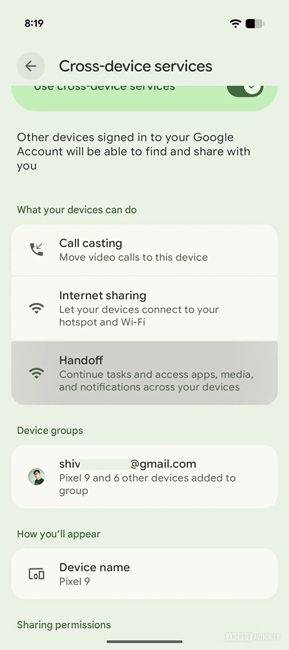
It even supports app-to-web transitions, so if the app is not installed on the second device, Continue On can fall back to the web version instead. This is part of Google's push to make Android feel like one connected ecosystem across phones, tablets and foldables.
Related Articles

Separate Wi-Fi and Mobile Data Tiles
Pixel users have been complaining about the combined Internet tile for years. And Android 17 finally splits Wi-Fi and mobile data into separate Quick Settings tiles, just like it used to be before Android 12.

And there is more to it. Google has also restored the single-tap Wi-Fi toggle, so you can enable or disable Wi-Fi with one tap instead of opening the Internet menu. Note that you may need to manually add the mobile data tile to your panel after updating. While we are at it, here is our guide on how to customise Quick Settings on Pixel phones.
Related Articles

Split-Screen Multitasking
Android 17 brings a 90:10 split-screen view for tall phones, where one app takes 90% of the screen and a second app takes the rest of the space. It seems inspired by OnePlus' Open Canvas.
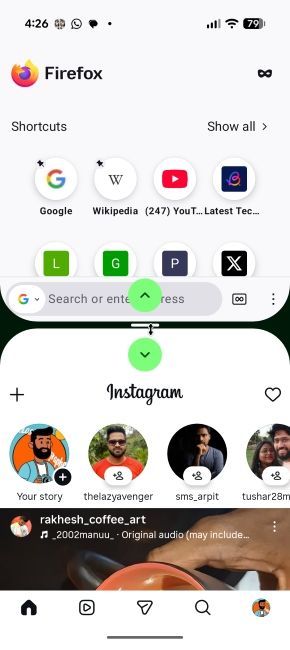
On top of that, Android 17 adds split-screen snap arrows. When you are in split-screen mode, you can tap arrows on the divider to instantly snap between 50:50, 70:30 and 90:10 ratios without having to drag the bar around manually.
New Contact Picker and Privacy Defaults
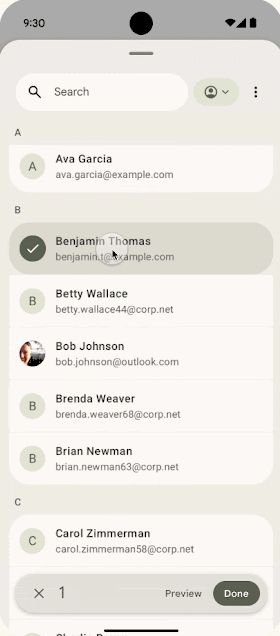
Android 17 is bringing three new privacy defaults that apply automatically to apps targeting API level 37. First, the new Contact Picker is a smarter alternative as to how we give contacts permission to apps. Instead of giving an app full access to your contacts, it gives apps temporary and one-time access to only the specific contacts they request. It's like Android's scoped storage, but for contacts.
Next, Local Network Protection has introduced a new permission. Apps targeting Android 17 must now explicitly request this permission before they can discover or connect to any device on your Wi-Fi network. Basically, apps will need explicit permission from users before they can access or scan your local network.
Android 17 is also delaying access to SMS OTP messages by three hours for most apps to prevent OTP hijacking. Your default SMS app, assistant apps and verified companion apps are exempt from this. In addition, apps that use the proper SMS Retriever or User Consent APIs are exempted. Basically, by the time three hours pass, the OTP code will have expired.
To improve location privacy, Android 17 is adding a one-session location button and bringing a more private approximate location algorithm. Next, the location indicator in the status bar can be expanded to show exactly which apps are accessing your location currently.
Security and Privacy Improvements in Android 17
In terms of security, Android 17's biggest new addition is Verified Financial Calls, which is a banking scam protection that works in the background. When you get a call that claims to be from your bank, Android checks with the bank's app to see if they are actually calling you. In case it's a dubious call, the system ends the call automatically.
Apart from that, phone theft protection also gets an upgrade. Find Hub's Mark as Lost feature now lets you lock your phone behind biometric authentication on top of your PIN from another device. This is done so thieves who somehow learn your PIN cannot disable tracking or get back into the device. Android 17 also reduces the number of PIN guesses allowed before lockout with longer wait times.

Next, your phone's IMEI is now accessible right from the lock screen so police or repair centres can verify ownership without unlocking the device. And Remote Lock and Theft Detection Lock are now enabled by default on every new Android 17 phone globally.
Finally, Android OS verification lets you check whether your phone is running an authentic, unmodified version of Android or not. And Chrome on Android will now scan APK downloads for known malware before the file even lands on your phone, but you need to keep Safe Browsing turned on.
Advanced Protection Mode 2.0
Security is getting a big improvement in Android 17. Android Advanced Protection Mode (AAPM) is an opt-in mode made for high-risk users like journalists, activists and executives. When enabled, it blocks app installation from unknown sources (no sideloading at all) and restricts USB data signalling to defend against 'juice jacking'. The security feature also mandates Google Play Protect scans.

Now, with AAPM 2.0 in Android 17, it blocks non-accessibility apps from using the AccessibilityService API. Google is also introducing Intrusion Logging, a new feature that keeps a secure and encrypted record of important device activity such as USB connection events, network info, app installs, Bluetooth connections, lock screen events and Wi-Fi connections.
The logs are stored in a private and encrypted Google Drive and automatically deleted after 12 months. If you think your phone has been compromised in the past, you can download the logs and review it.
App Memory Limits
App Memory Limits is here with Android 17 and it restricts how much RAM individual apps can hold based on your device's total memory. This will ensure that a misbehaving apps don'hog system resources and slow down the whole system.
Android 17 sets a baseline for memory usage for every app, and any app that exceeds its allocation gets flagged or terminated by the system before it can cause UI stuttering or battery drain. With this feature, Google wants to make Android phones more consistent over time, as the system will actively prevent rogue apps from dragging down overall performance.
Quality-of-Life Upgrades in Android 17
Android 17 is packed with smaller changes that improve the overall experience. Here are the ones worth knowing about.
- App-specific dark theme: You can now disable dark theme for individual apps, so the system-wide setting no longer breaks apps that already look fine.
- Hide app names: A new toggle in Wallpaper & style lets you hide app labels on the home screen for a cleaner look.
- Separate Assistant volume: Gemini and other assistant volume levels can finally be adjusted independently from your media volume. Android 17 offers a dedicated slider in Settings or you can adjust via the volume buttons during conversations.
- Bigger Live Updates buttons: Supported apps now get larger action buttons in Live Updates, such as a bigger "Exit Navigation" button in Google Maps.
- Satellite SOS tile: A new Quick Settings tile gives quick access to Satellite SOS on supported Pixel phones.
- Bouncier animations: Several system animations including Quick Settings and Picture-in-Picture, now have a bit more bounce.
Coming with Android 17 QPR1 or Later
Here are a couple of Android 17 features, which are not in this stable build but are confirmed to arrive later.
Blur Effect
The Liquid Glass-style blur effect that made the rounds during the beta is not fully implemented in the Android 17 stable release. For now, Android 17 only applies some Gaussian blur effect to the widget picker. The wider system-wide blur across the volume panel, power menu, notification shade and Pixel Launcher menus is likely coming with the Android 17 QPR1 update on Pixels later this year.

Agentic Gemini
Google is positioning Android 17 as an "intelligence system" but Gemini Intelligence is not part of today's rollout. Earlier, Google detailed that Gemini can automate multi-step tasks across installed apps, autofill forms via Gemini Personal Intelligence and show proactive suggestions through Magic Cue. App automation has already launched on the Galaxy S26 series and select Pixel 10 devices, starting with food delivery, grocery and ride-sharing apps.

Around all of this, Google has built a strong privacy framework. Every AI feature is opt-in, app automation can be enabled for specific apps, and Gemini requires user confirmation before making purchases. On the other hand, comprehensive data protection uses Private Compute Core, Private AI Compute and protected KVM to safeguard ambient data.
In addition, new defences against prompt injection have been implemented. And a real-time "View progress" shows up when Gemini is automating an app. Not to mention, a new AI assistant activity history in the Privacy Dashboard that shows which assistants were active and which apps they used in the last 24 hours.
Features That Didn't Ship with Android 17
Finally, a few Android 17 features that showed up during the beta cycle or were expected, but didn't make it into the stable release. Here is what is missing for now.
Native App Lock

Android's long-awaited native App Lock, which we expected to arrive with Android 17, is not present in the stable release. It was spotted during the beta but is not part of the launch build. If you can't wait, here is how to lock apps on Android right now using other tools.
Desktop Mode
Desktop Mode was promised with Android 16, but the first public rollout only arrived as a developer preview in Android 16 QPR1 Beta 2 on Pixel phones. Google said desktop windowing is set to launch later for compatible devices, but it has not arrived with Android 17 yet.

Other continuity features and optimisations for larger screens in Android 17 point to a proper Desktop Mode. We have already seen that Android 17 is removing orientation and resizability limits for larger screens.
Priority Charging
Priority Charging is a new mode that pauses resource-heavy background processes and limits CPU usage when you plug in your phone, so the current goes straight to the battery. The feature is most effective with a 30W or higher charger. It's really a useful feature, however, it has not arrived with Android 17.

Lock Screen Widgets (Hub Mode)
Lock screen widgets was supposed to ship with Android 17, but it has been deferred I guess. It's supposed to bring a new Hub mode to Pixel phones with a glanceable widget panel. It lets you check your calendar, control smart home devices, view fitness stats or check the weather without unlocking your phone.

Currently, Hub mode supports three widgets per page with no limit on the number of pages. The feature went live for Pixels with Android 16 QPR2, and we expected Android 17 to bring the feature to the wider ecosystem.
Split Notification and Quick Settings Panels
Android 17 has arrived and there is still no option to choose between the classic 'Combined' panel and a new 'Separate' panel. The Separate setting splits notifications (swipe down from the left side of the status bar) and Quick Settings (swipe down from the right) into two different shades, just like other Android skins.

And that wraps up our look at Android 17. The update is rolling out to Pixel 6 and newer devices right now. To check whether your Google phone made the list, here are the Android 17 eligible Pixel devices. Other OEMs will release their Android 17-based updates in 2026 and beyond.


